
Installing The Mobile App
Installing for iPhone
Adding the web app to your iPhone home screen lets you open it just like a native app — full-screen, fast, and easy to access.
Follow the steps below to install it.
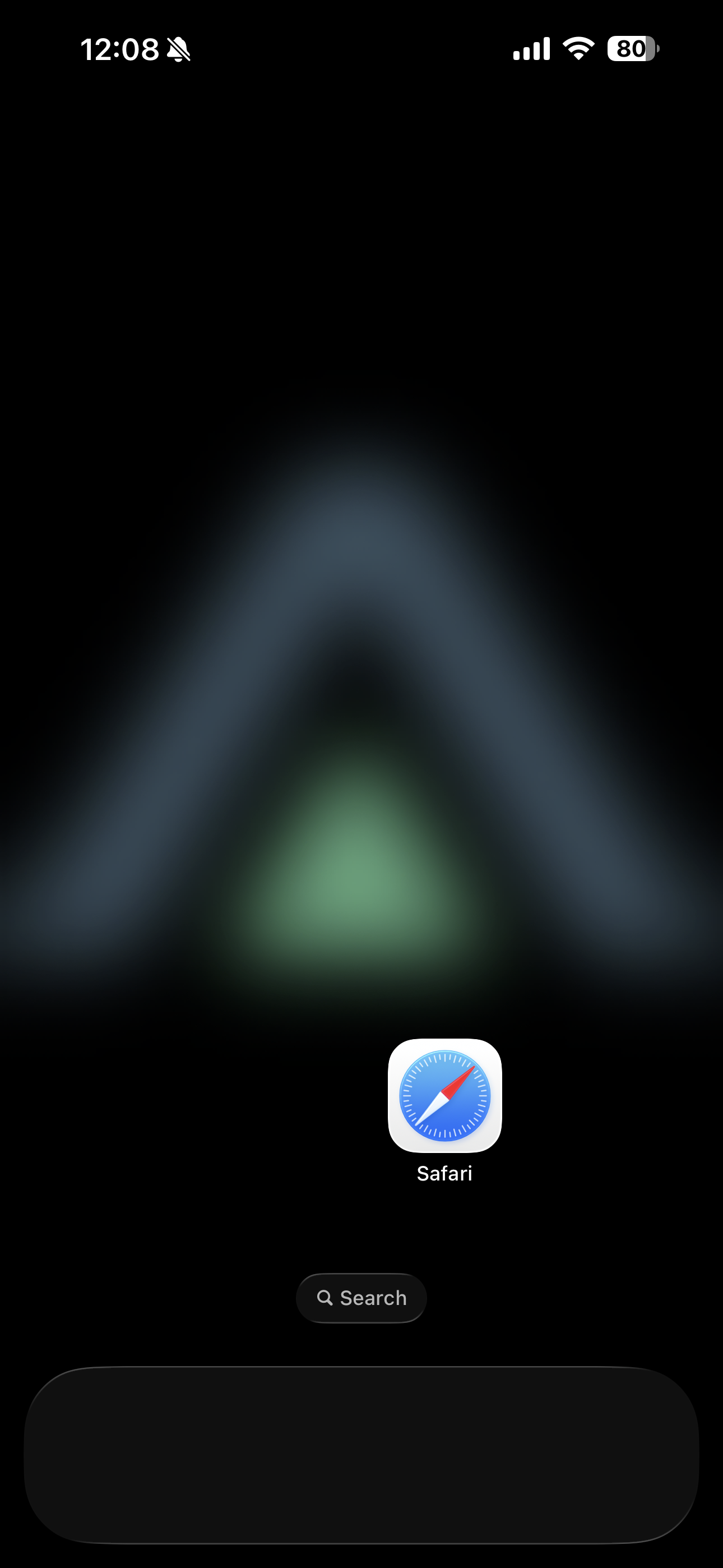
1. Open Latner in Safari
Our app must be opened in Safari for the installation option to appear.
Tip: The “Add to Home Screen” option is only available in Safari (not Chrome or other browsers).
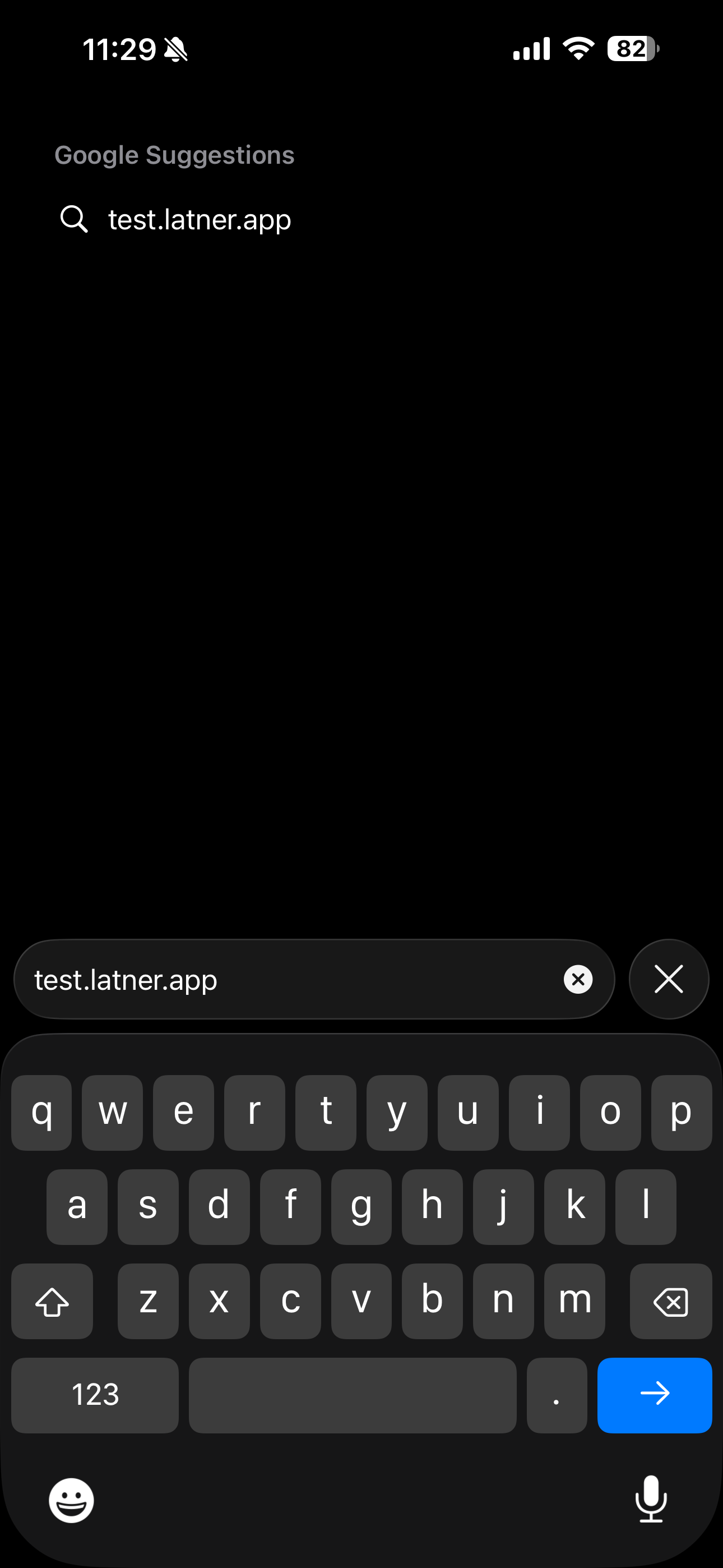
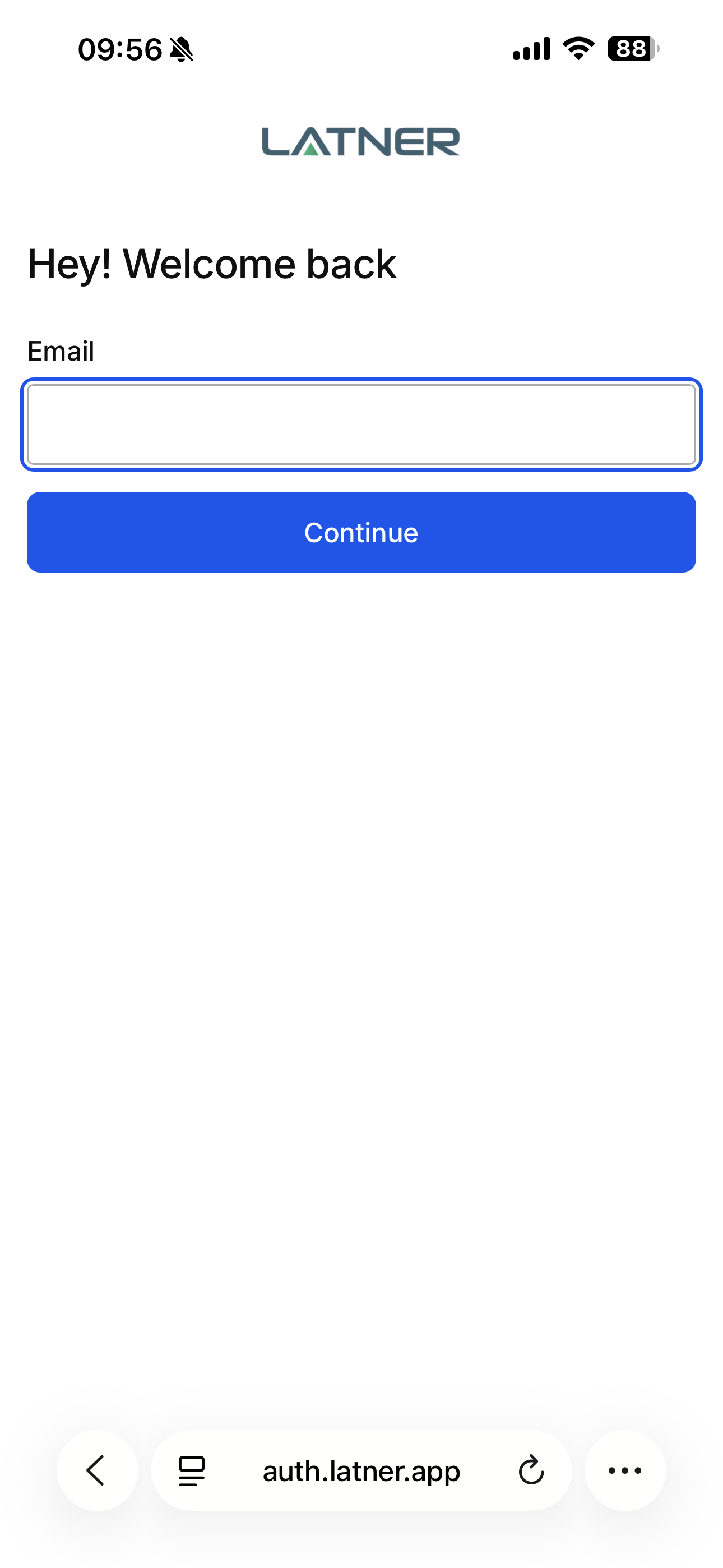
2. Login to Latner
Login to your account in Latner.
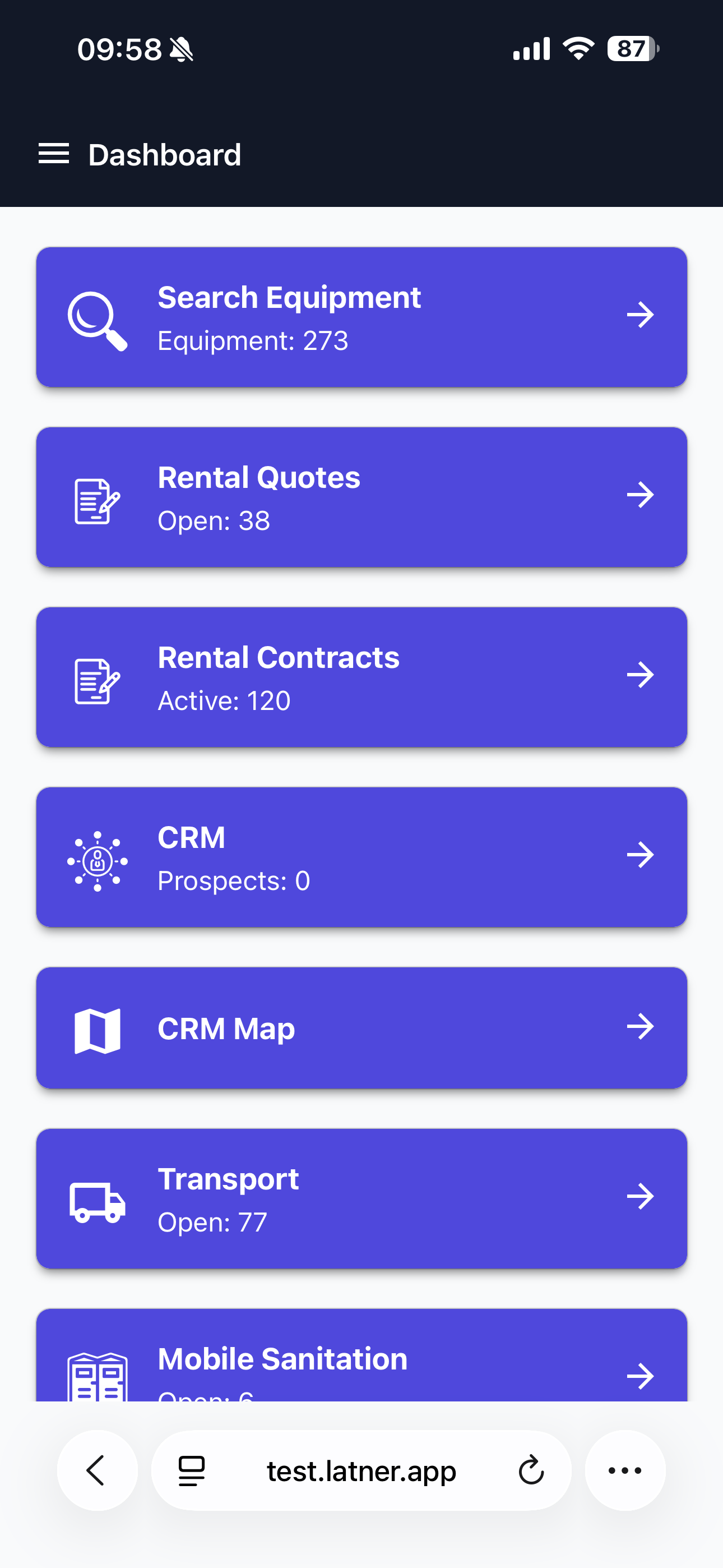
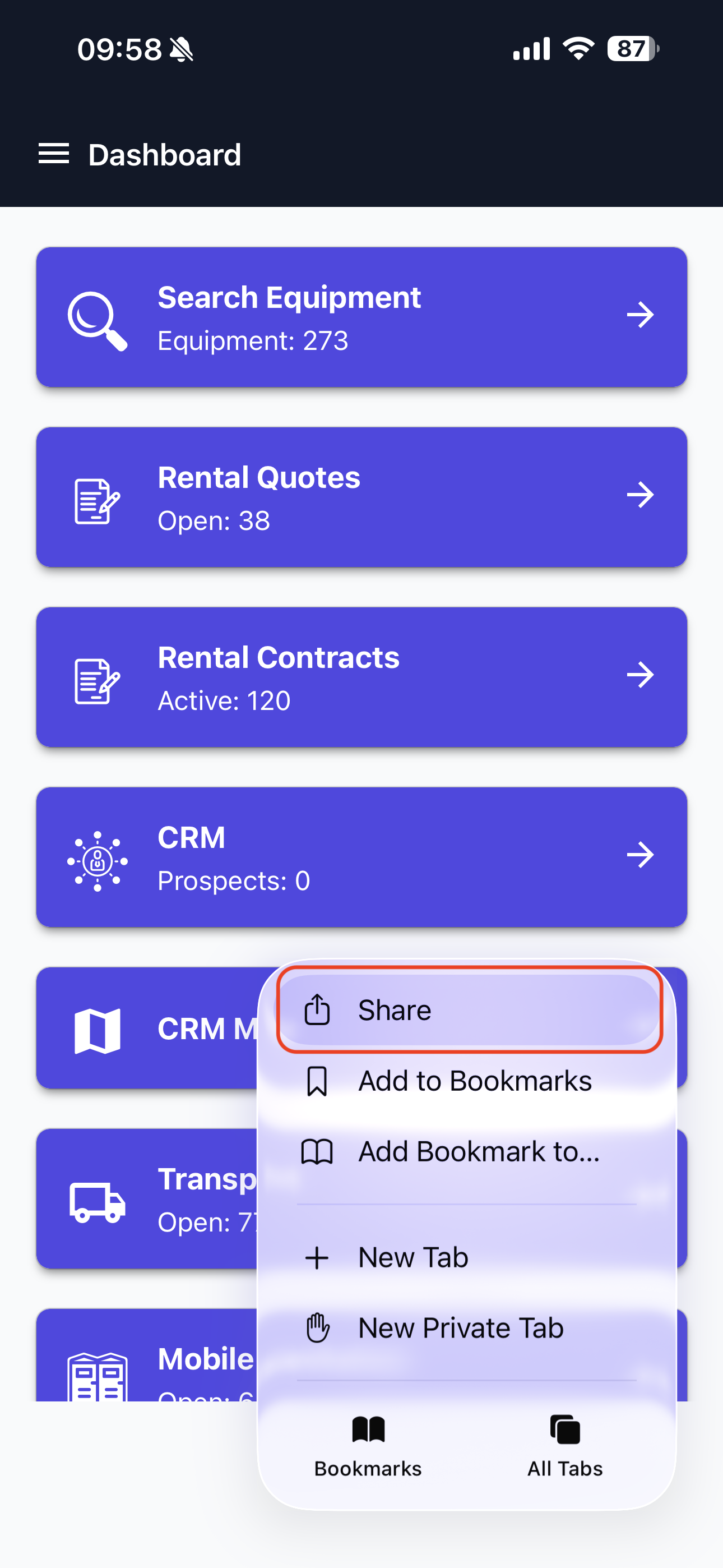
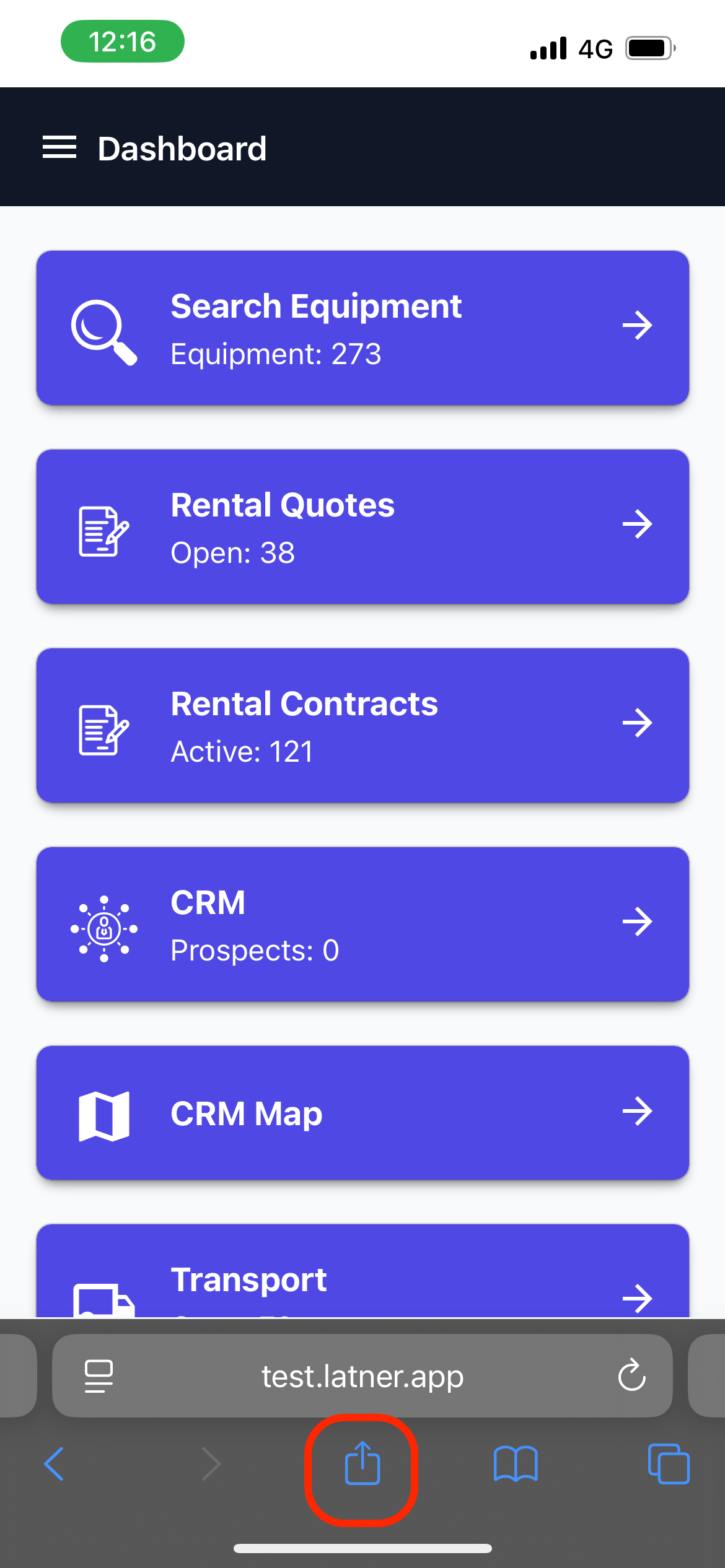
3. Tap the Share Button
Tap the Share icon at the bottom of the screen
(looks like a square with an arrow pointing up).
3. Select “Add to Home Screen”
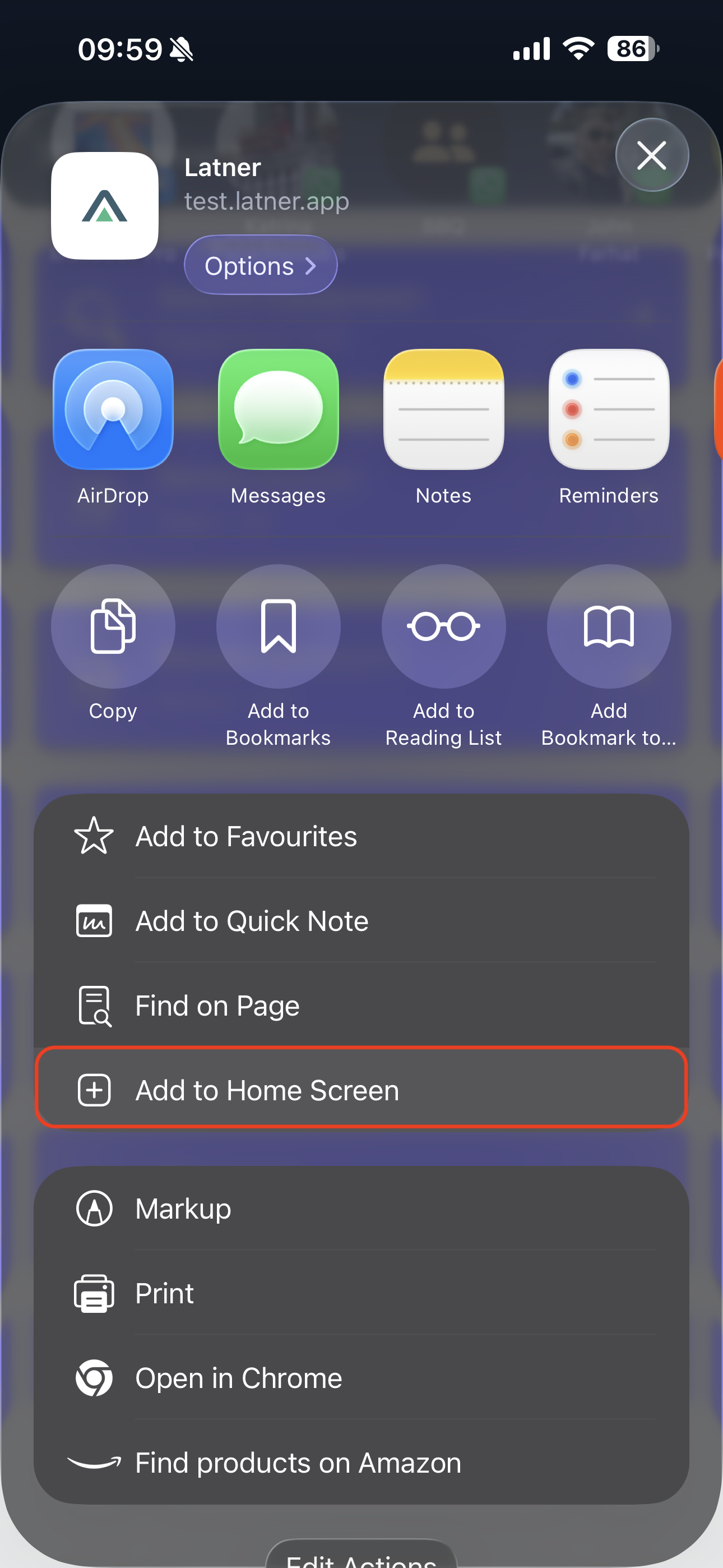
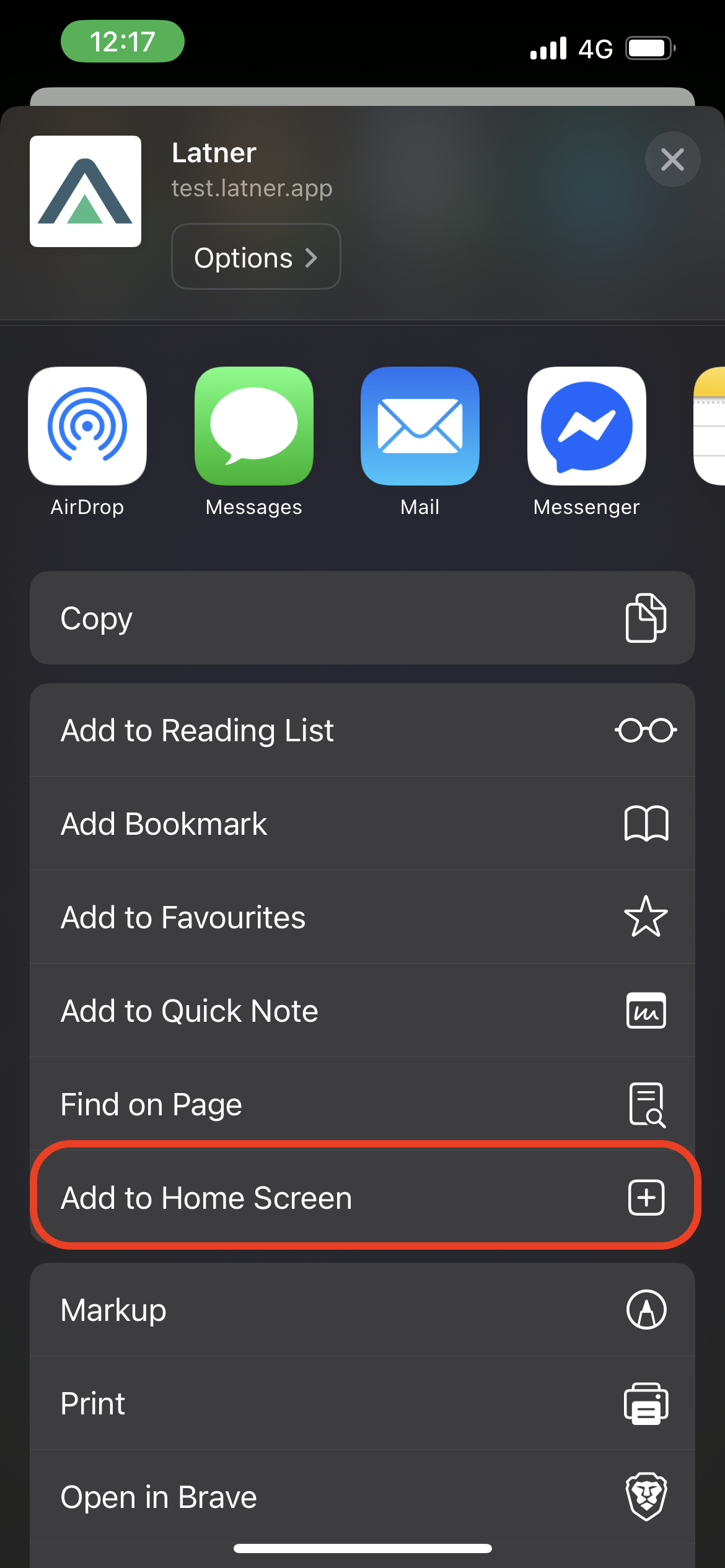
Scroll down the share sheet until you see Add to Home Screen.
Tap it.
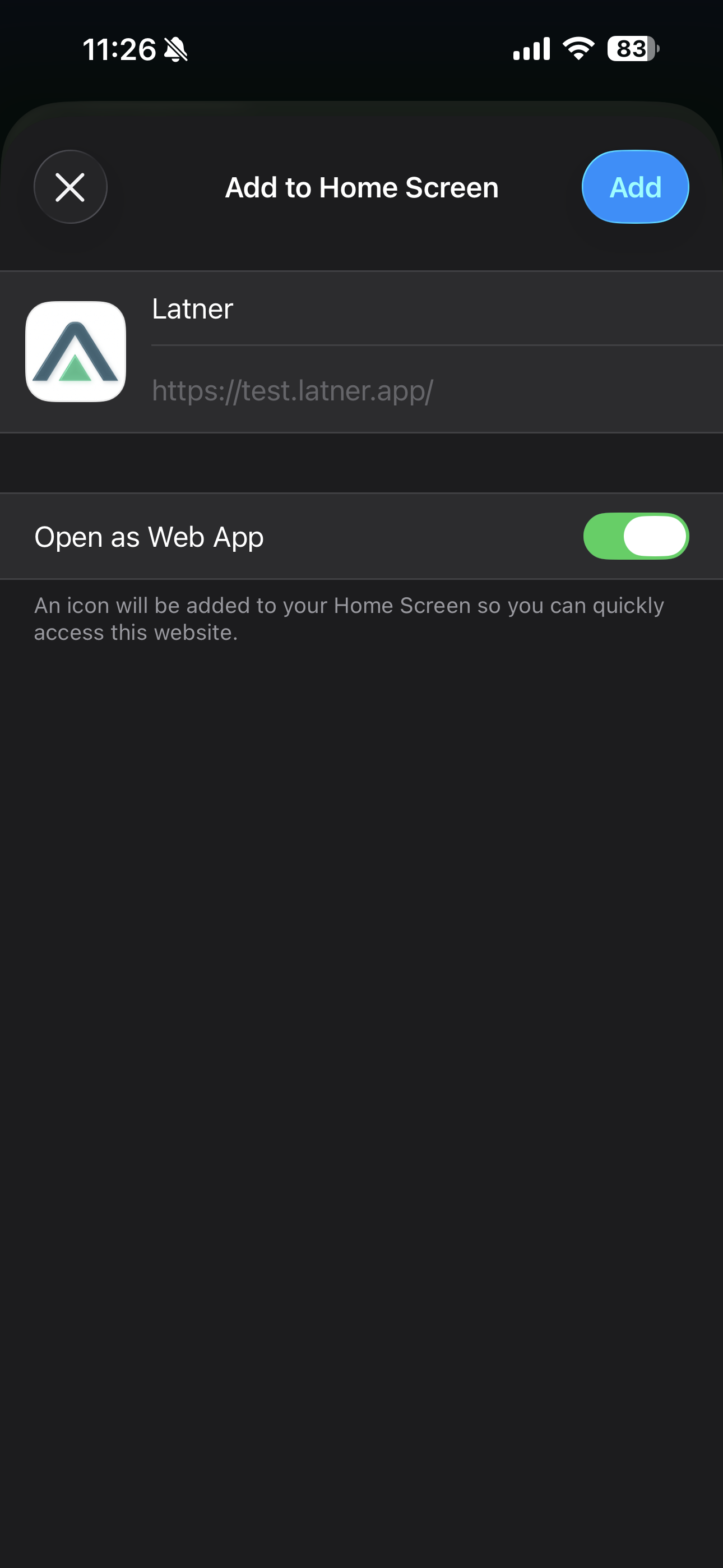
4. Confirm the App Name
A preview screen will appear showing the app icon and name.
You may rename it if you prefer.
Tap Add in the top-right corner.
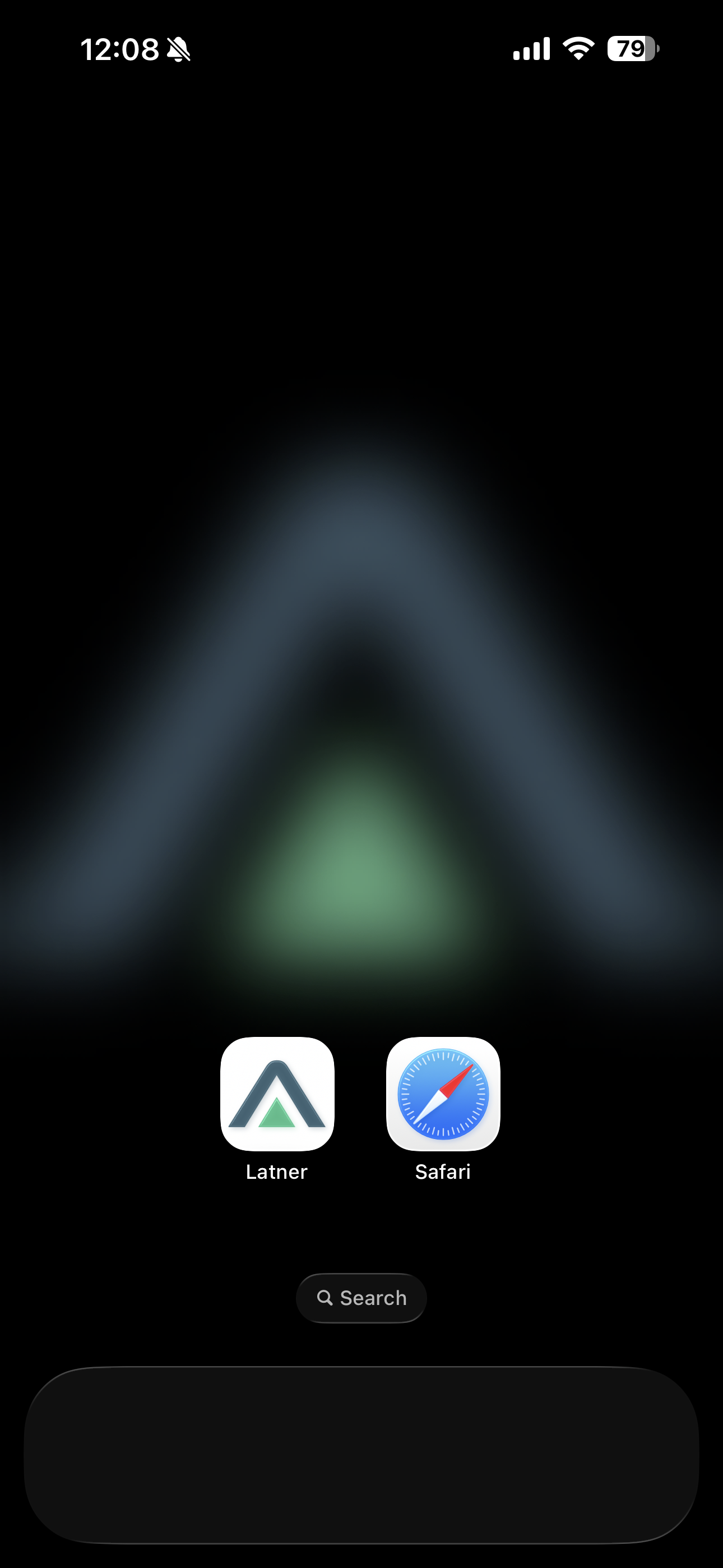
5. Find the App on Your Home Screen
You’ll now see the web app on your Home Screen, just like a normal iPhone app.
Troubleshooting
I don’t see “Add to Home Screen”
Ensure you’re using Safari