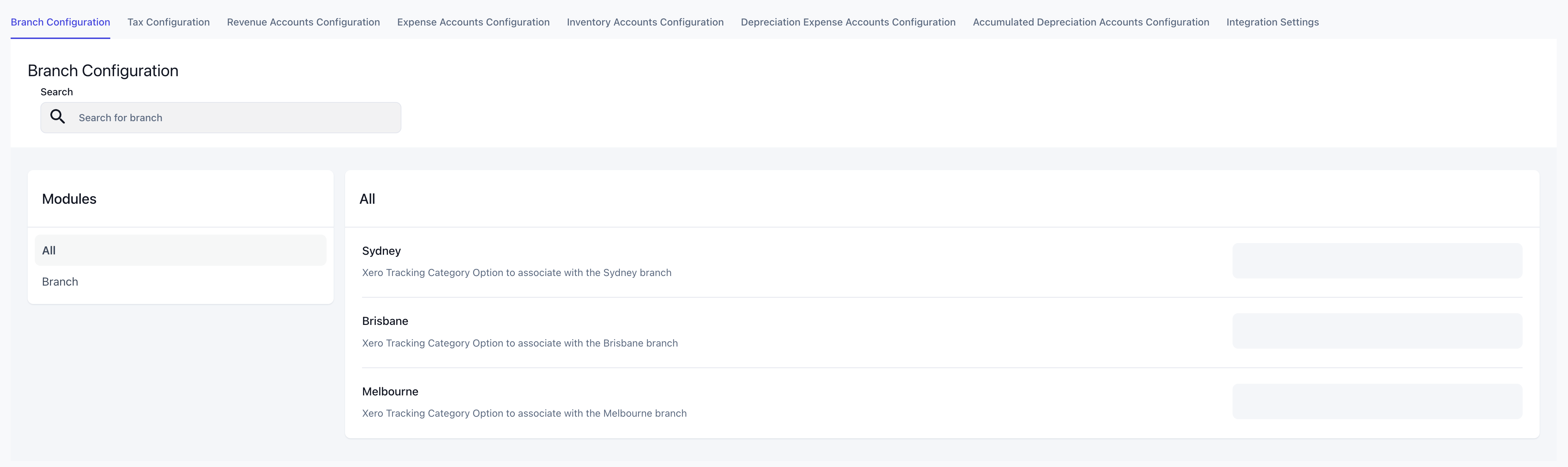
Using an Integration Screen
Integration screens are found within the configuration menu of Latner specific to that module. They allow you to connect the system with third‑party software. They allow you to set up and manage integrations such as accounting platforms, equipment trackers, or other external services, ensuring data flows seamlessly between Latner and your wider business tools. For example, you might configure an accounting integration so that invoices raised in Latner automatically sync with your financial system.
Reviewing Company Setup
Before using integrations, ensure your companies are set up in the top area. Most integrations support connecting multiple services per company, allowing you to tailor connections if different companies require different platforms (e.g., separate accounting systems or trackers).
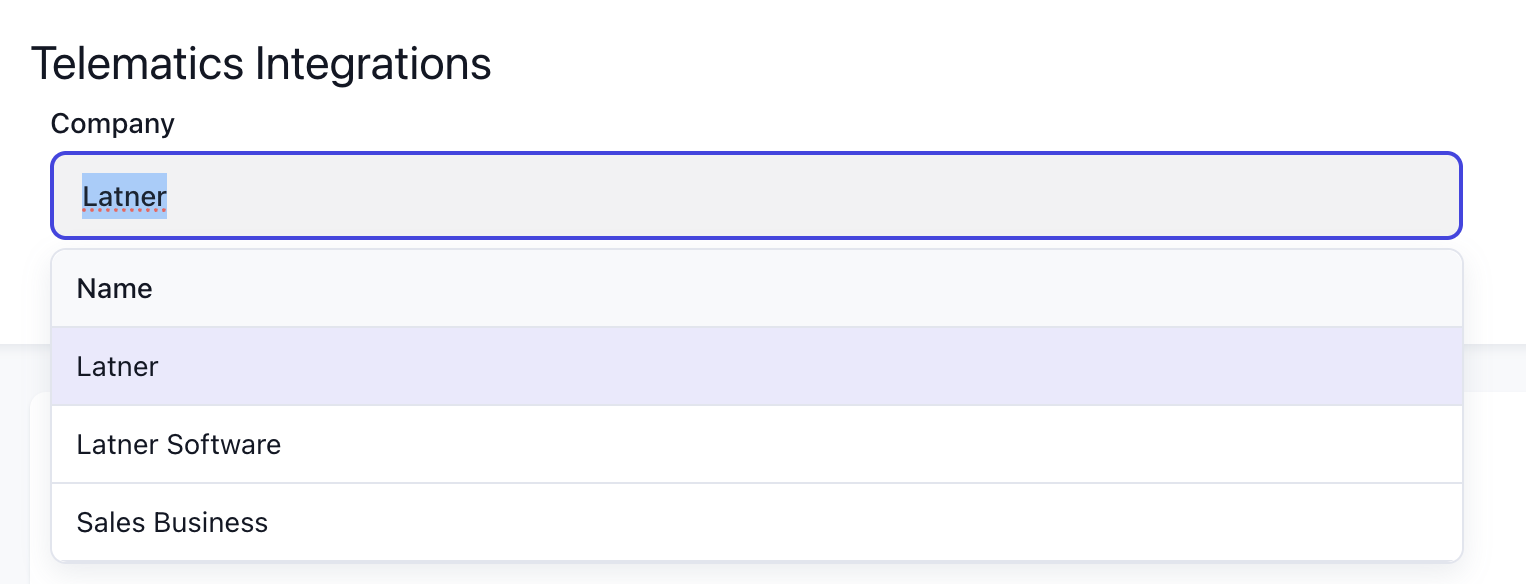
Connecting to the External Integrations
Clicking the Connect button opens a prompt to establish the link with the third‑party platform.
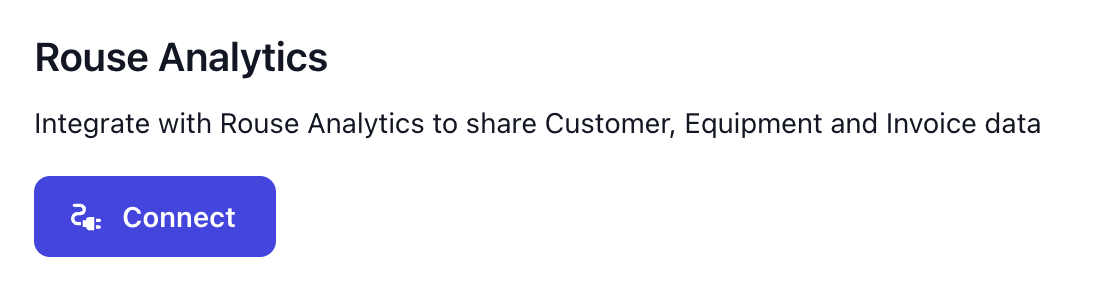
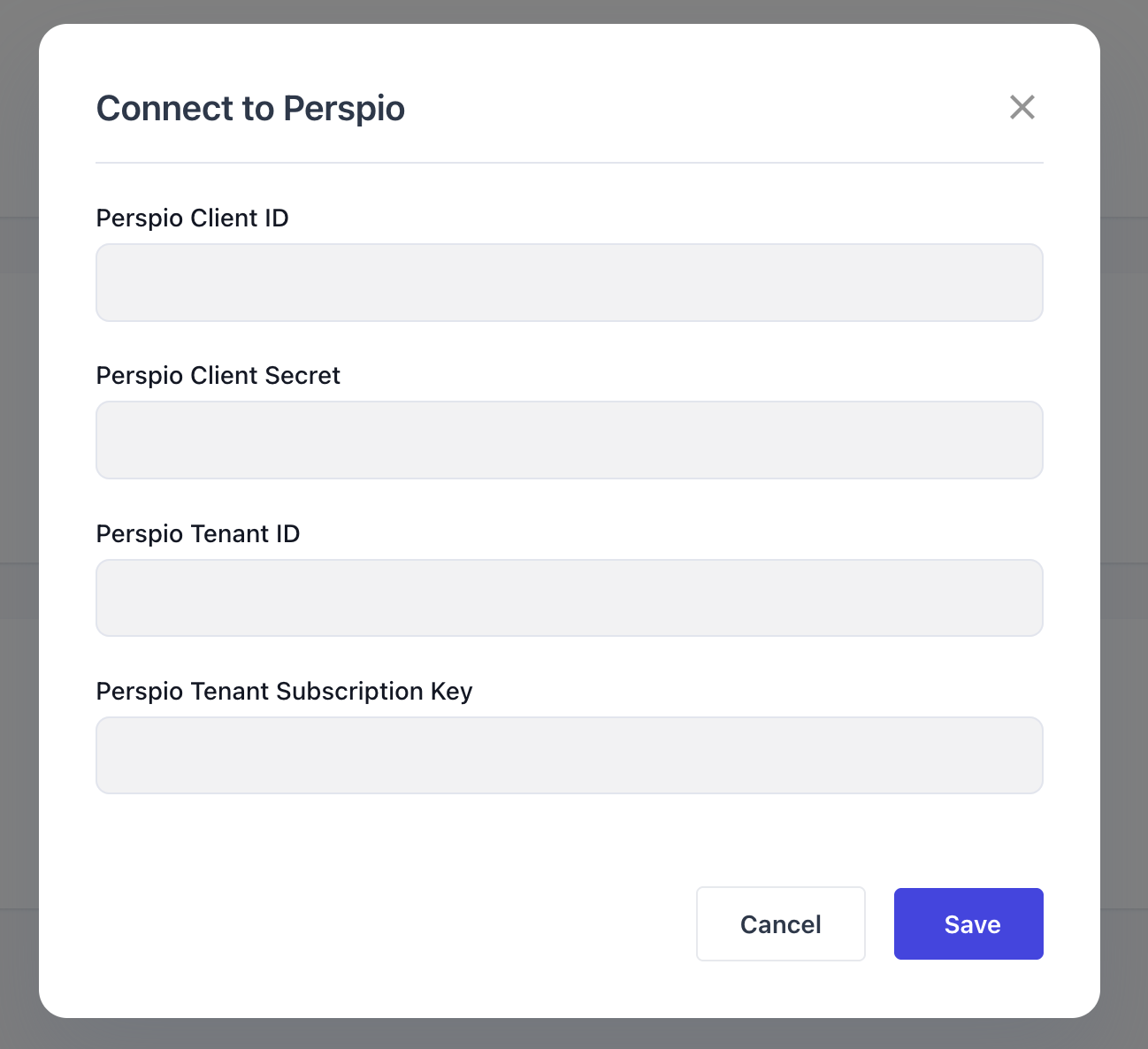
This usually involves logging in with your account credentials, or entering a client ID and passcode provided by the external system. In some cases, the button may redirect you to the provider’s website, where you complete the login and authorise Latner to connect to the correct integration.
If a connection expires or needs to be refreshed, clicking Reconnect repeats the connection process. This re‑authenticates the link with the external platform, ensuring data continues to flow correctly.
Selecting Remove Connection disconnects the integration from the company. Once removed, Latner will no longer exchange data with that external system until a new connection is established.
Configuring the Connected Integrations
Some integrations include additional configuration options once connected. Click Configure to explore these options.
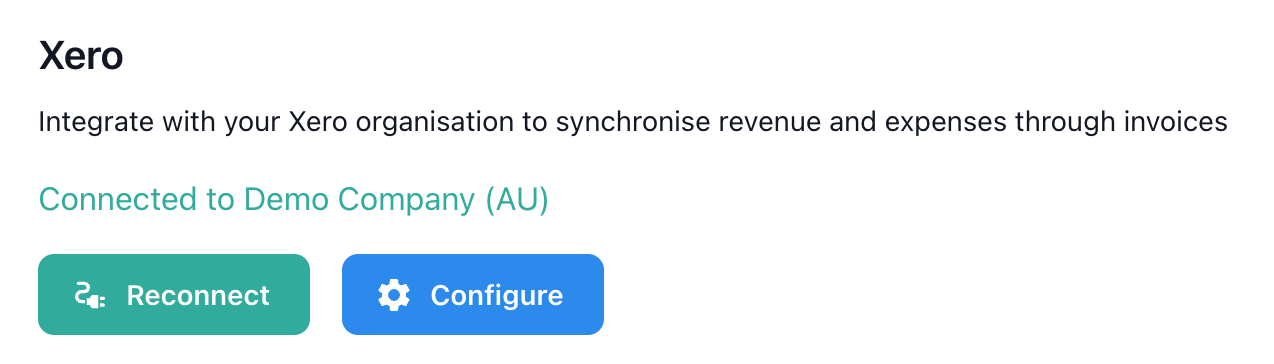
These settings define how information is exchanged between Latner and the external system - for example, mapping data fields, setting synchronisation rules, or enabling specific features. Adjusting these options ensures the integration behaves according to your operational needs.