Equipment
Categories
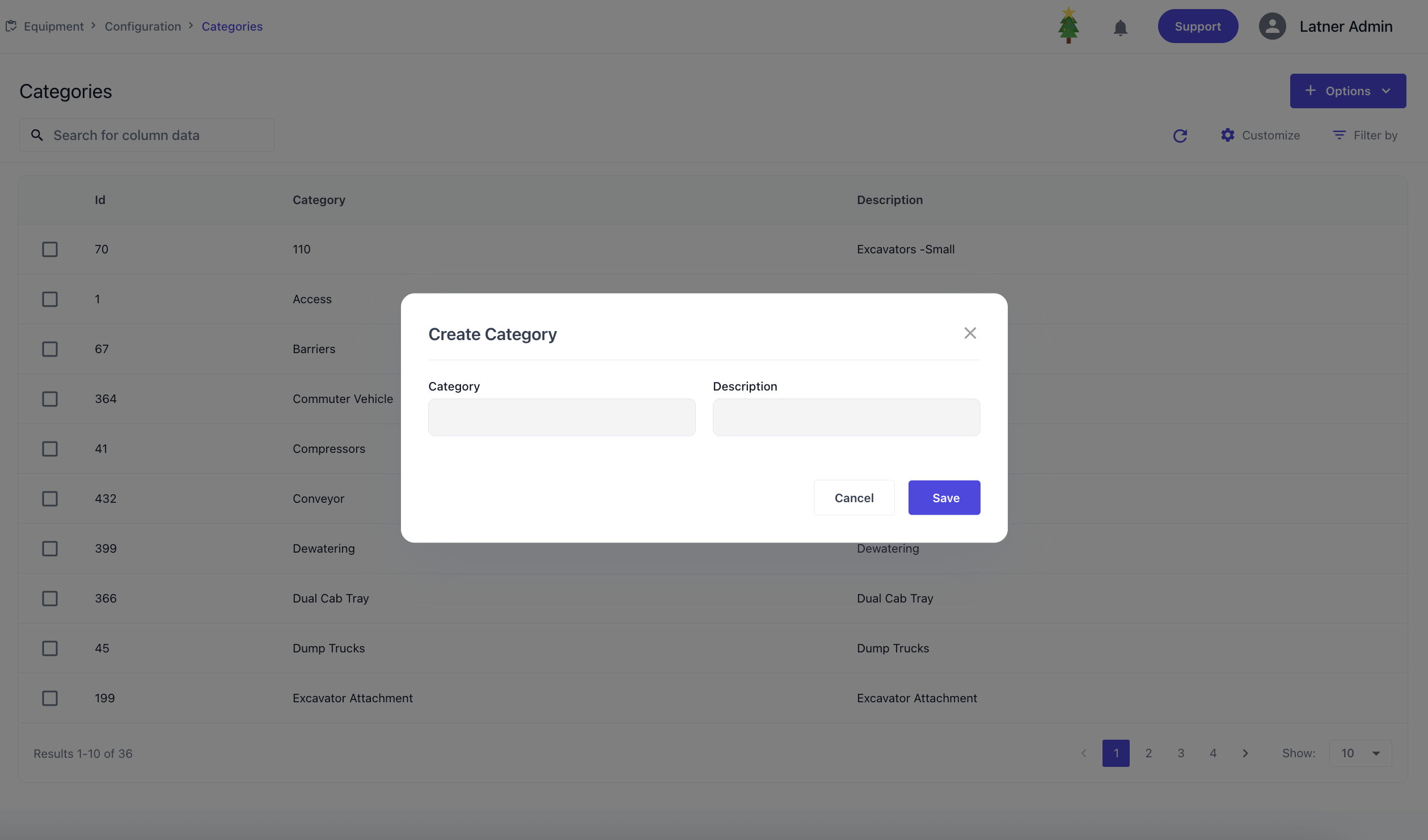
Equipment Categories are used to configure broad groupings of equipment types. When setting up a category, you define the name and description.
Classes
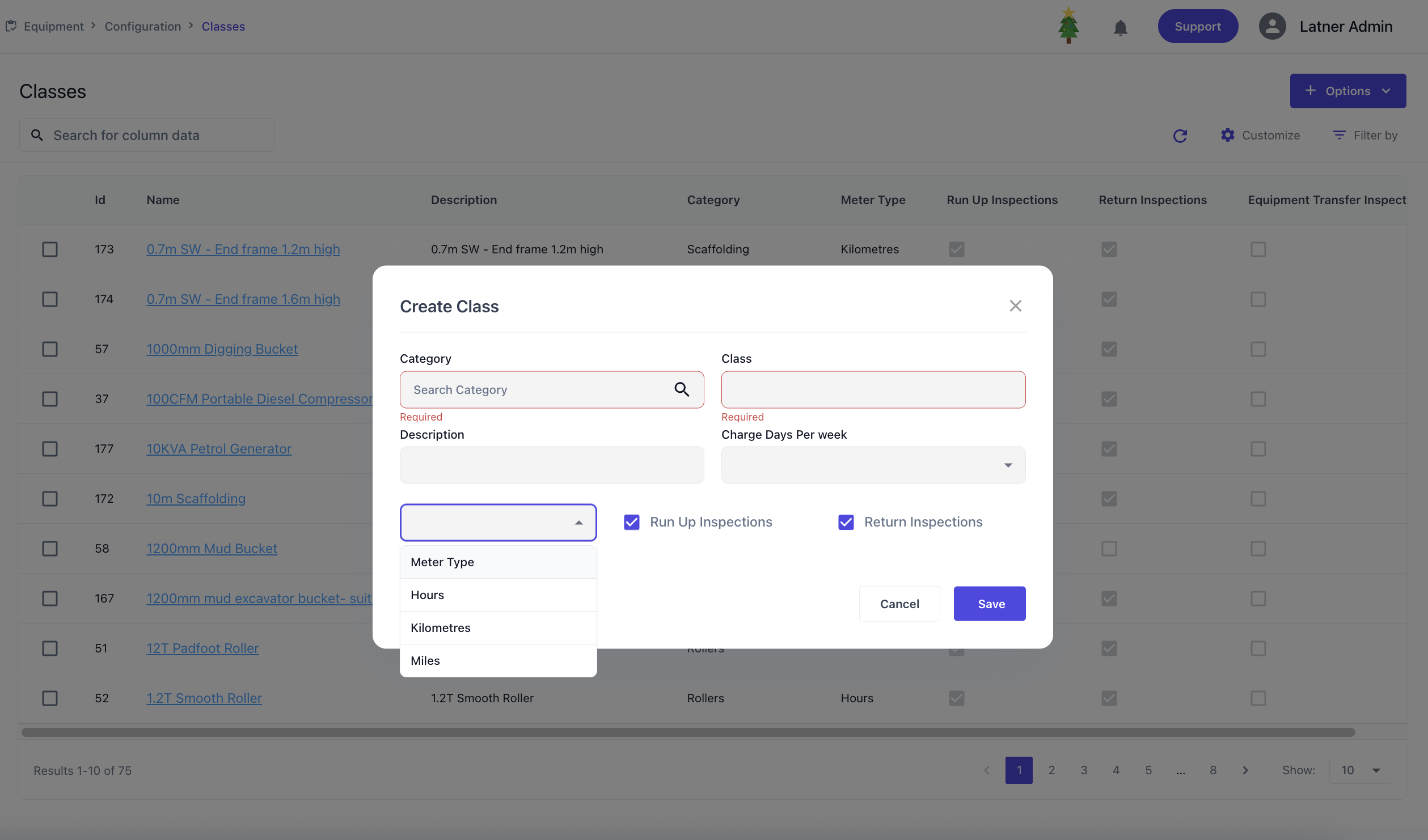
Equipment Classes are used to define sub-groups within a category, typically based on size, function, or operational role. When setting up a class, you define:
Category: the parent category this class belongs to
Default charge days per week: sets the standard billing cycle for the equipment with this class
Meter type: Specifies the type of usage meter used to track equipment activity
Run‑up inspection: flags if inspection is required when the equipment with the same class is put on hire; checklist can optionally be added on detail screen
Return inspection: flags if inspection is required when the equipment with the same class has returned; checklist can optionally be added on detail screen
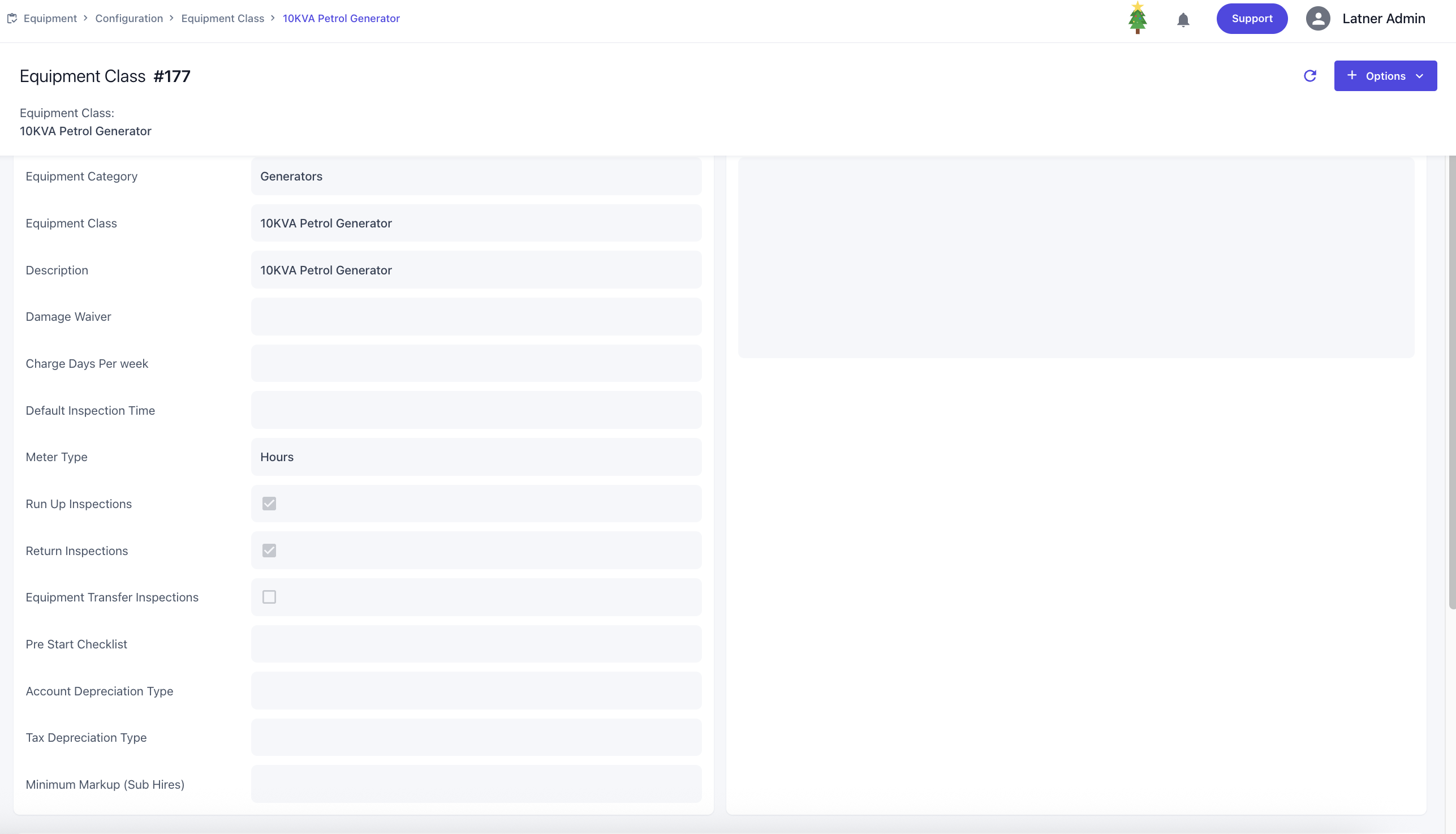
Once the class is created, the system opens a detailed screen where you can configure:
Damage waiver: defines the damage waiver on class level; can be set per hierarchy.
Default charge days per week: sets the standard billing cycle for the equipment with this class
Default inspection time: establishes the expected time allocation for inspections
Meter type: Specifies the type of usage meter used to track equipment activity
Run‑up inspection: flags if inspection is required when the equipment with the same class is put on hire; checklist can optionally be added on detail screen
Return inspection: flags if inspection is required when the equipment with the same class has returned; checklist can optionally be added on detail screen
Equipment transfer checklist: flags if inspection is required when the equipment with the same class has transferred branches; checklist can optionally be added
Pre‑start checklist: set a checklist template for operators to complete on an operator docket before starting equipment with the same class
Account depreciation type: defines how the equipment with the same class is depreciated for accounting purposes
Tax depreciation type: specifies the depreciation method used for tax reporting, ensuring compliance with regulations
Minimum markup for sub‑hire: sets the minimum profit margin applied when equipment is sub‑hired from a supplier, preventing undercharging.
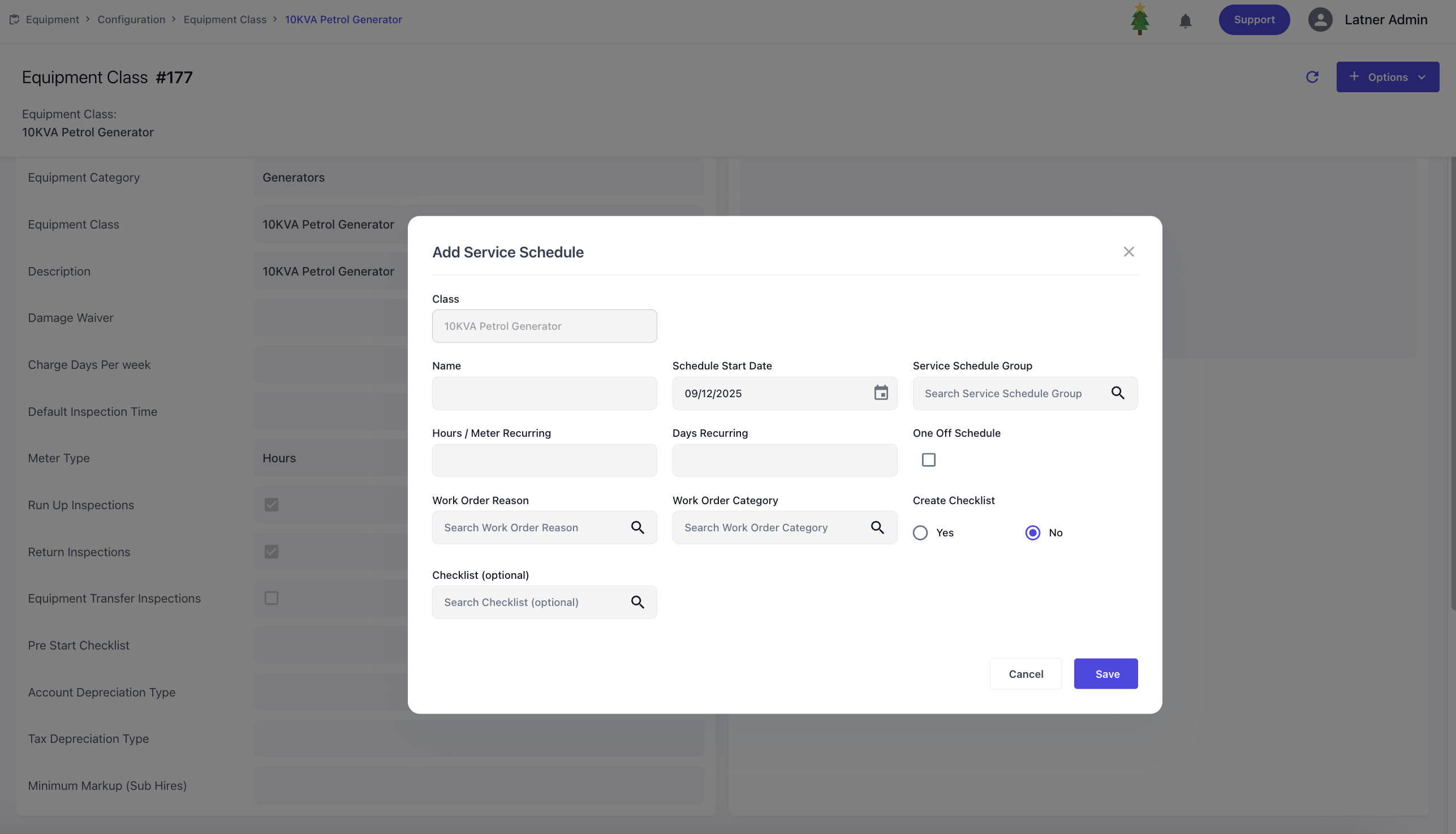
You can also add service schedules against the class, where you define:
Schedule start date: the date the service schedule begins
Service schedule group: groups related schedules together for calculating frequency how one schedule that takes over after another
Recurring frequency: determines how often the service occurs, based on hours meter, days, or both
One‑off schedule flag: marks the schedule as a single occurrence rather than recurring
Work Order Reason and Category: classifies the service work order for operational reporting
Create Checklist flag: either generates a new checklist for the schedule or links an existing checklist template to this schedule
See more detailed information on How to Assign a Service Schedule to Equipment
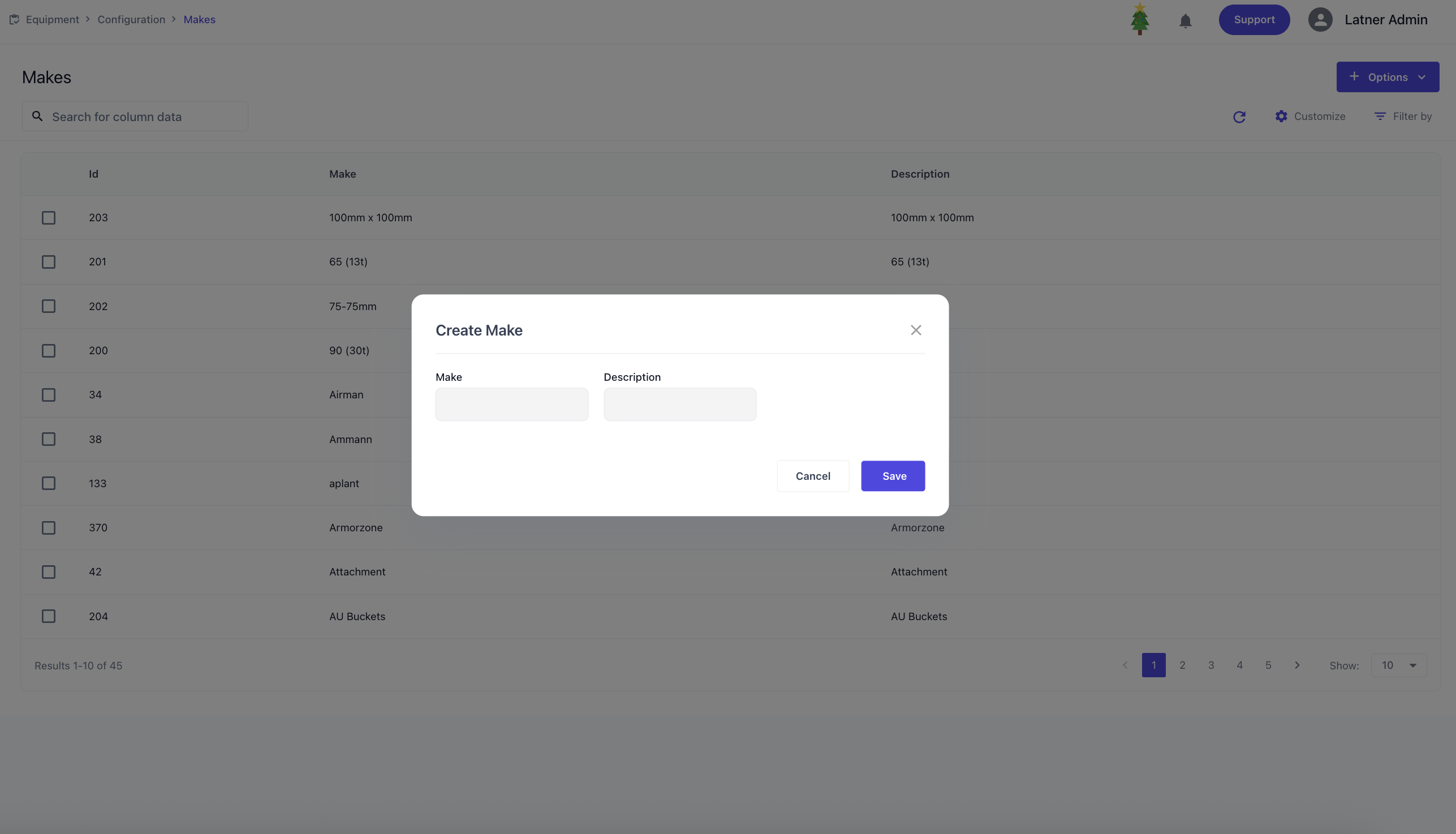
Makes
Equipment Makes are used to configure the manufacturer or brand of the equipment. When setting up a make, you define the name and description.
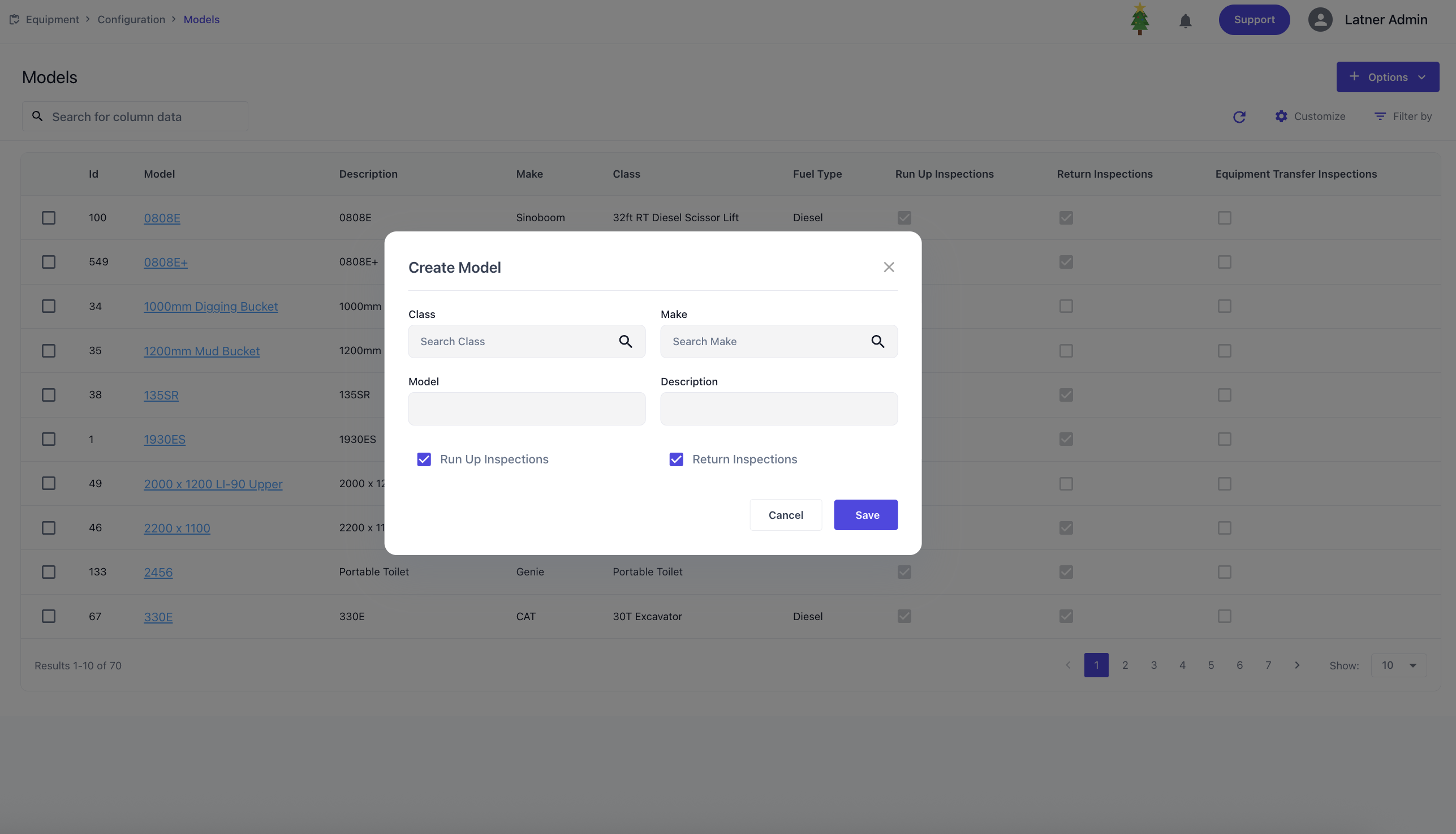
Models
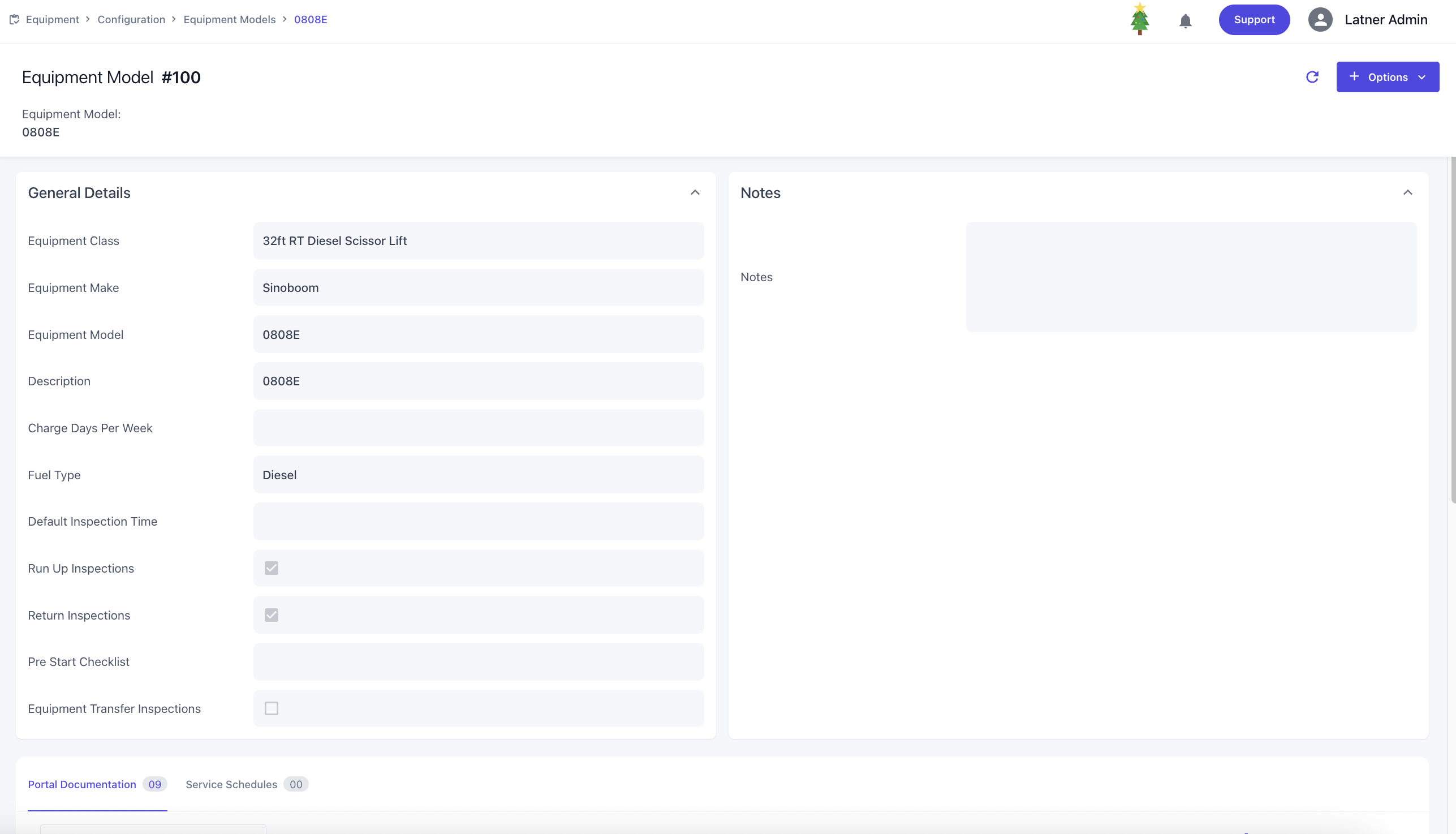
Equipment Models are used to define the specific version of equipment within a class and make. When setting up a model, you define the name / description and the following:
Class: the equipment class the model belongs to
Make: the manufacturer or brand it links to
Run‑up inspection: flags if inspection is required when the equipment with the same model is put on hire; checklist can optionally be added; takes over what is set on class
Return inspection: flags if inspection is required when the equipment with the same model has returned; checklist can optionally be added; takes over what is set on class
Once the model is created, the system opens a detail screen where you can configure:
Default charge days per week: sets the standard billing cycle for the equipment with this class; takes over what is set on class
Default inspection time: establishes the expected time allocation for inspections; takes over what is set on class
Fuel type: identifies the fuel required for the equipment with the same model
Run‑up inspection: flags if inspection is required when the equipment with the same model is put on hire; checklist can optionally be added; takes over what is set on class
Return inspection: flags if inspection is required when the equipment with the same model has returned; checklist can optionally be added; takes over what is set on class
Equipment transfer checklist: flags if inspection is required when the equipment with the same model has transferred branches; checklist can optionally be added; takes over what is set on class
Pre‑start checklist: set a checklist template for operators to complete on an operator docket before starting equipment with the same model; takes over what is set on class
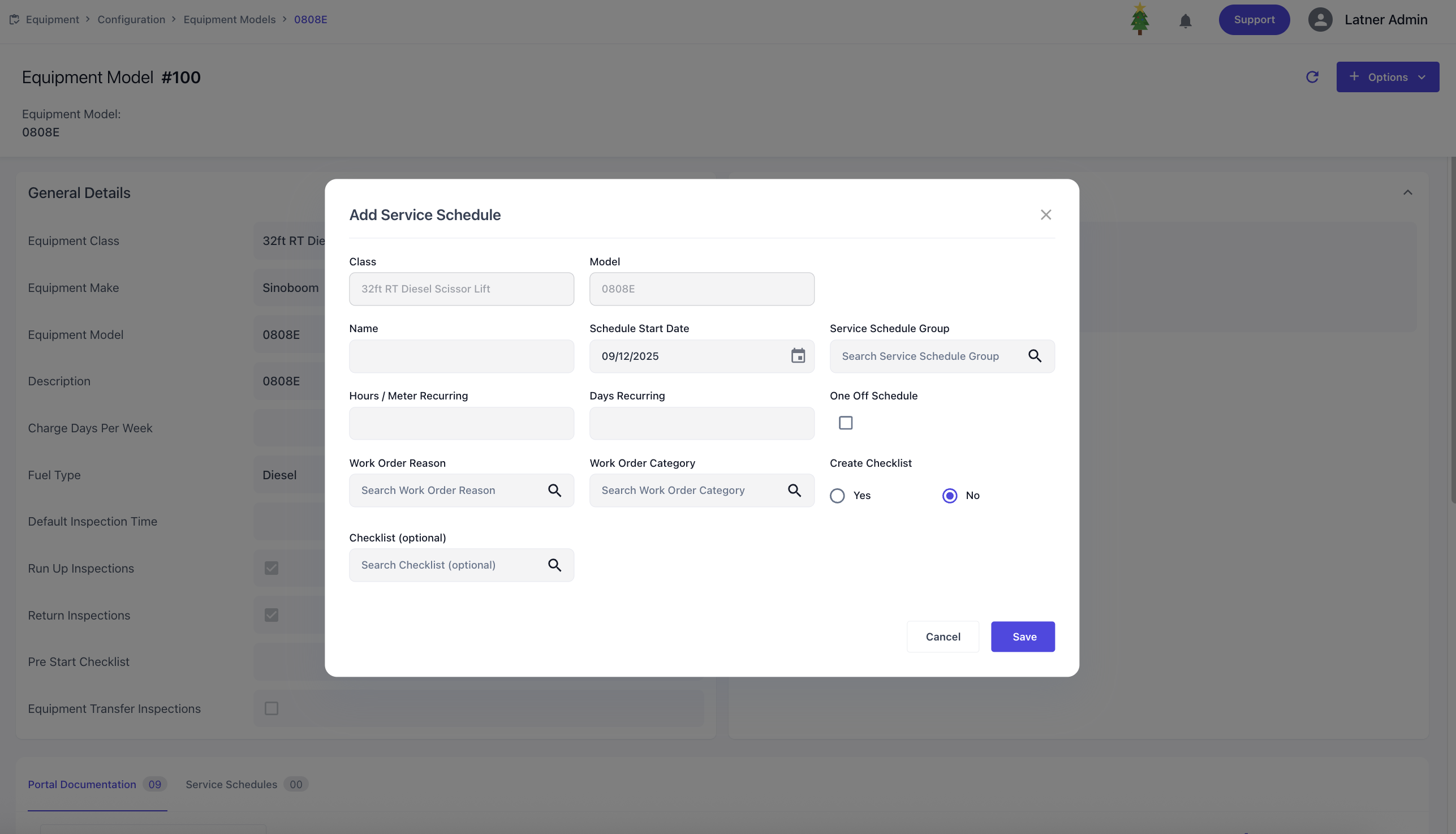
You can also add service schedules against the class, where you define:
Schedule start date: the date the service schedule begins
Service schedule group: groups related schedules together for calculating frequency how one schedule that takes over after another
Recurring frequency: determines how often the service occurs, based on hours meter, days, or both
One‑off schedule flag: marks the schedule as a single occurrence rather than recurring
Work Order Reason and Category: classifies the service work order for operational reporting
Create Checklist flag: either generates a new checklist for the schedule or links an existing checklist template to this schedule
See more detailed information on How to Assign a Service Schedule to Equipment
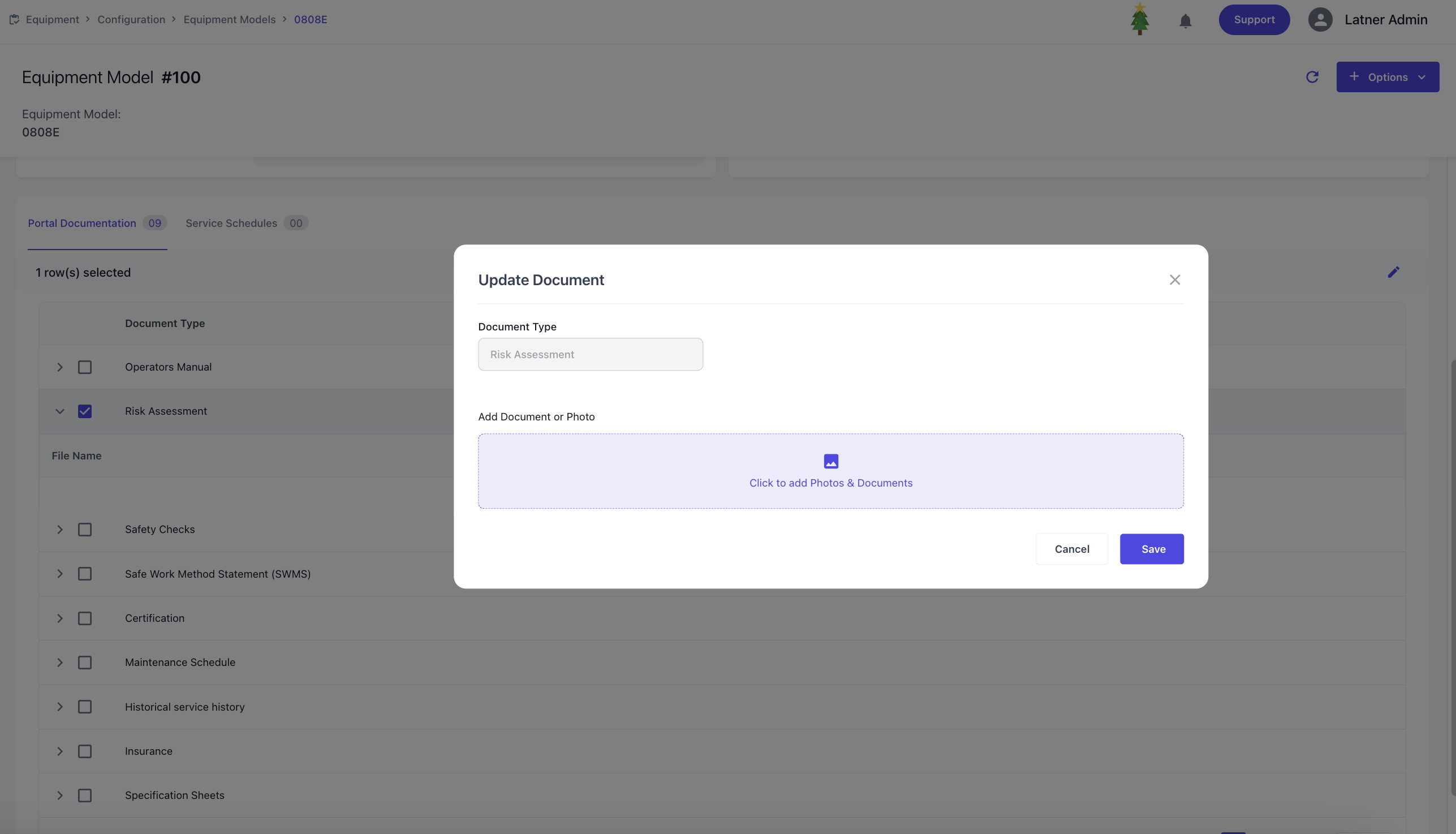
Within the Model detail screen, you can configure Portal Documentation that customers can access through the public portal via QR code or link. You can upload documents against their types, these documents become visible to customers through the portal, ensuring they have direct access to the correct information for the equipment.
Fuel Types
Fuel Types are used to configure the type of fuel along with the associated costs and charges. When setting up a fuel type, you define:
Cost: the internal cost of the fuel
Charge: the fee applied to customers when fuel is billed
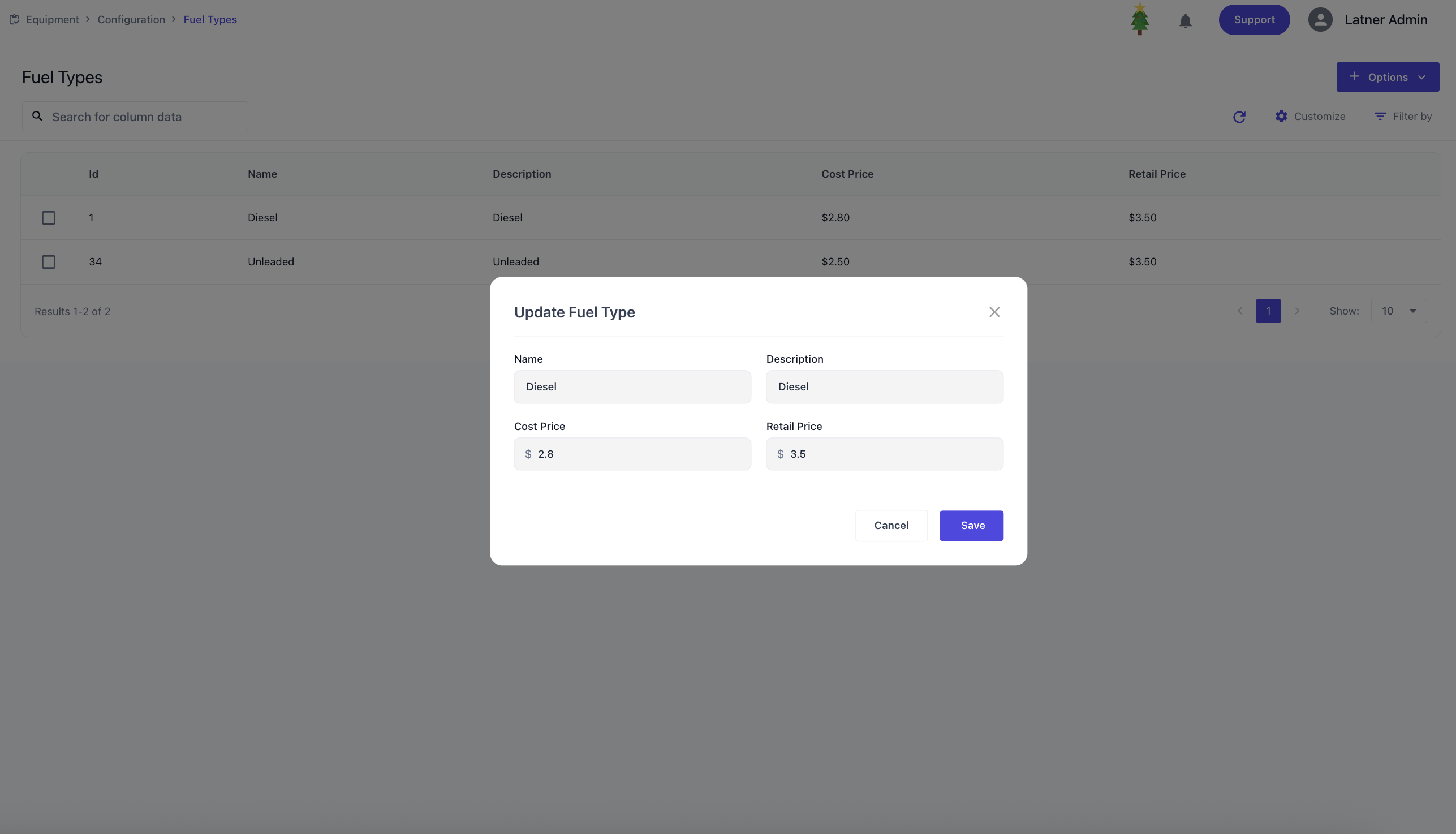
This ensures that fuel usage is consistently recorded, correctly charged, and visible in both operational and financial reporting.
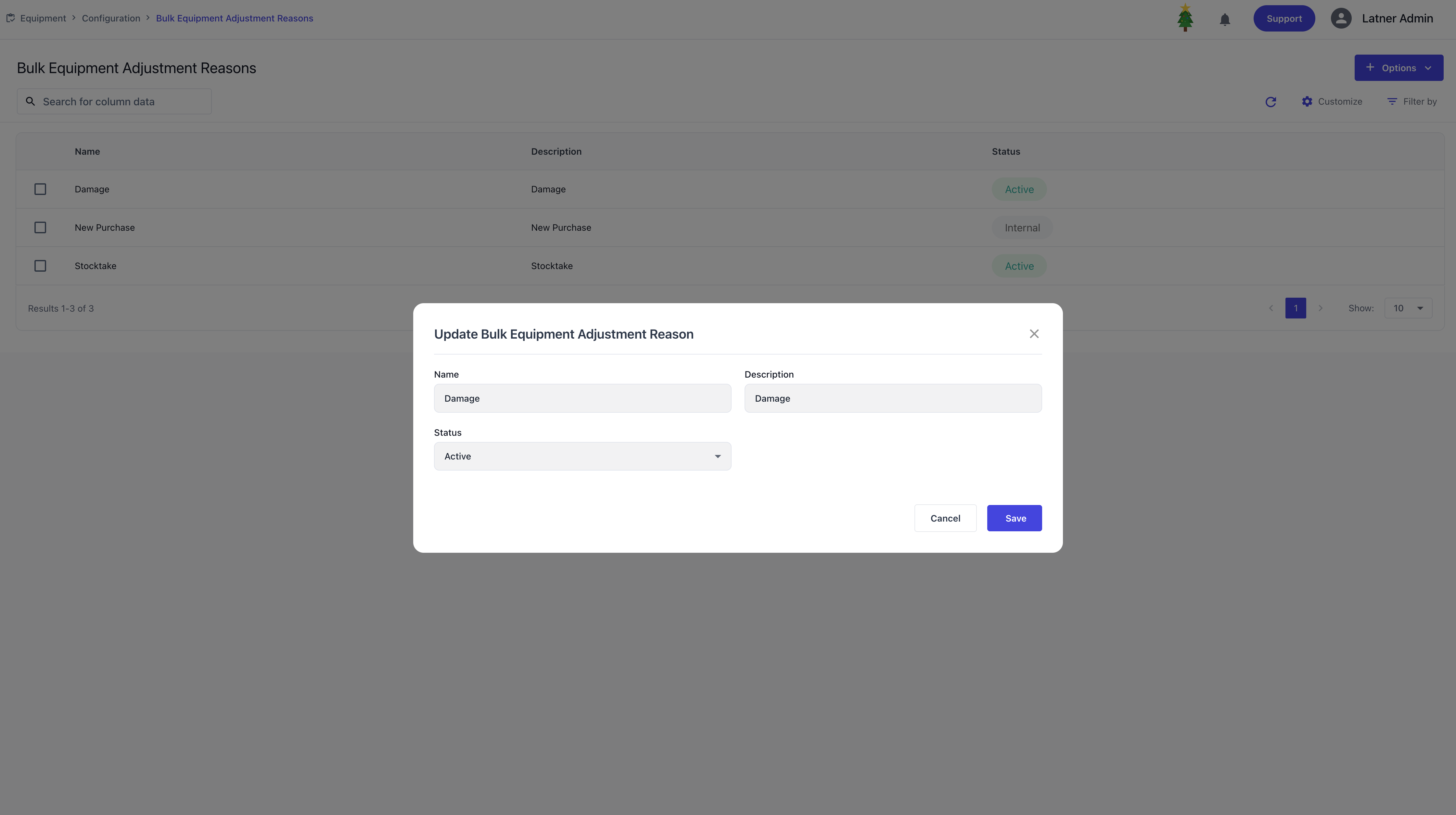
Bulk Equipment Adjustment Reasons
Bulk Equipment Adjustment Reasons are used to configure categories for bulk equipment adjustments, providing clarity and consistency when large groups of equipment records are updated. When setting up an adjustment reason, you define the name, description and status.
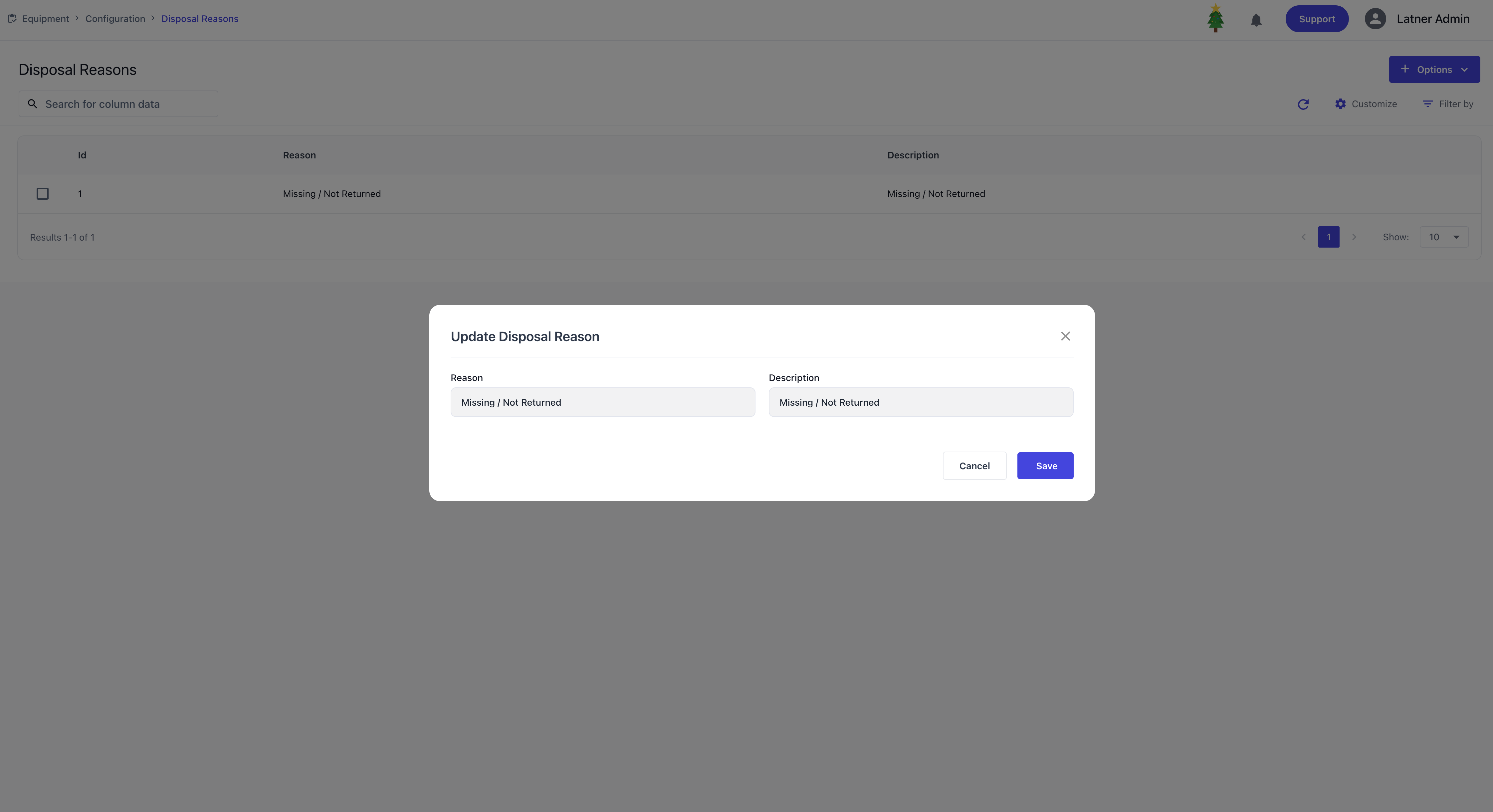
Disposal Reasons
Disposal Reasons are used to configure categories for equipment disposals, providing clarity and consistency when assets are retired or removed from service. When setting up a disposal reason, you define name and description.
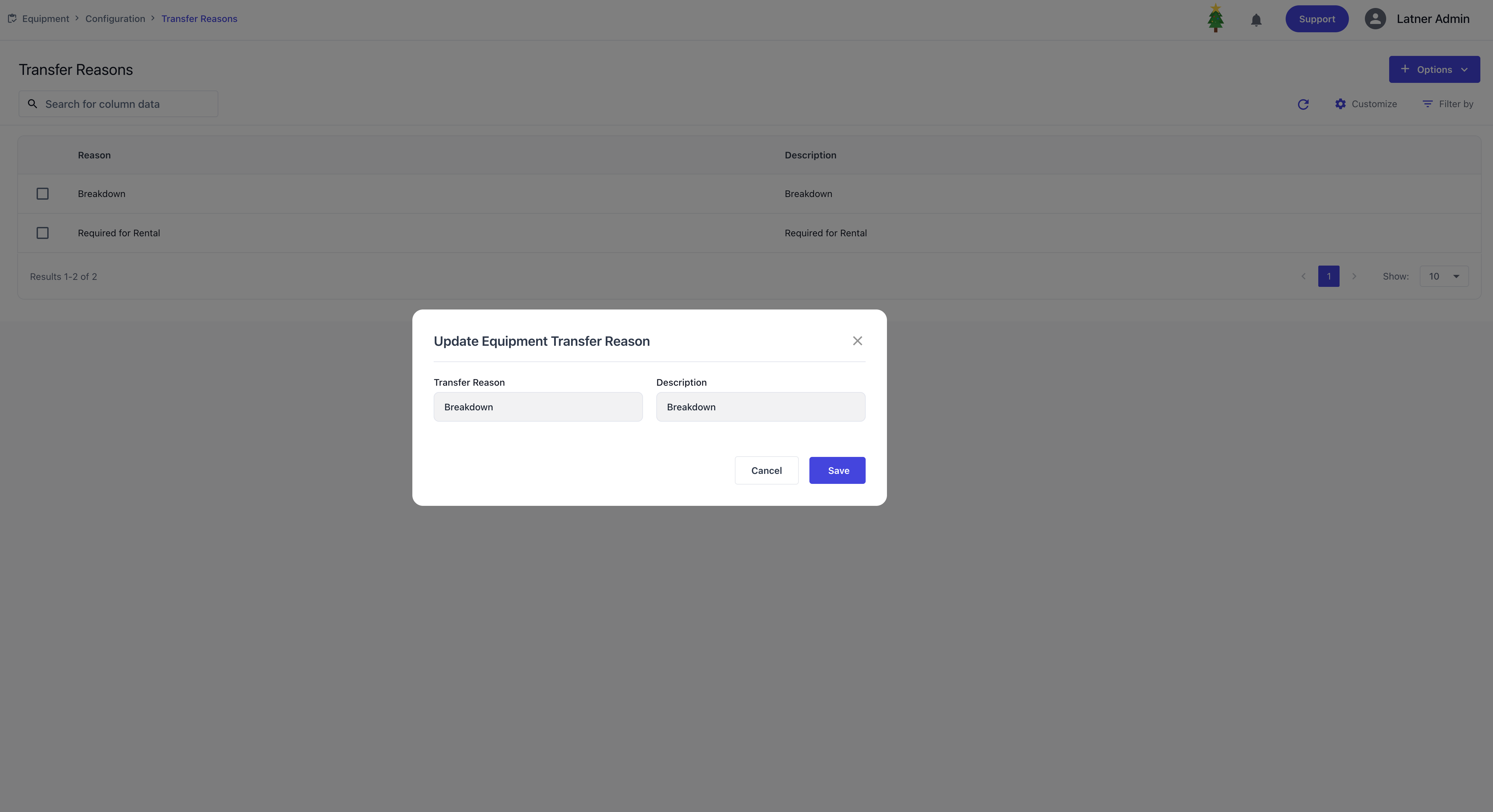
Transfer Reasons
Transfer Reasons are used to configure categories for equipment transfers between branches, ensuring clarity and consistency when assets are moved across locations. When setting up a disposal reason, you define name and description.
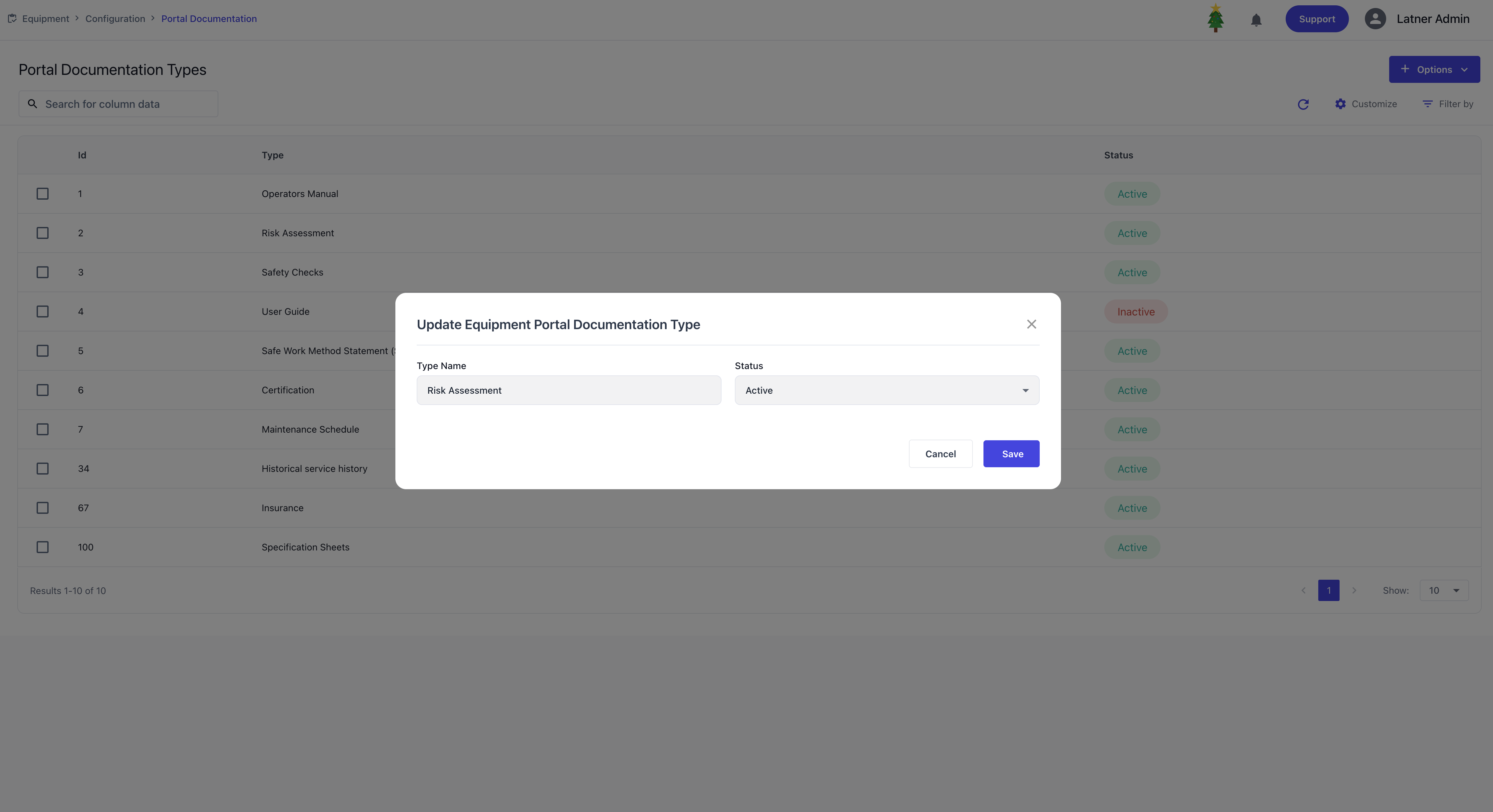
Portal Documentation Types
Portal Documentation Types are used to configure categories for documents that can be uploaded and made available to customers through the public portal (via QR code or link). These types act as the framework against which specific documents are stored, ensuring consistency and easy access. When setting up a portal documentation type, you define name and status.
Checklist Templates
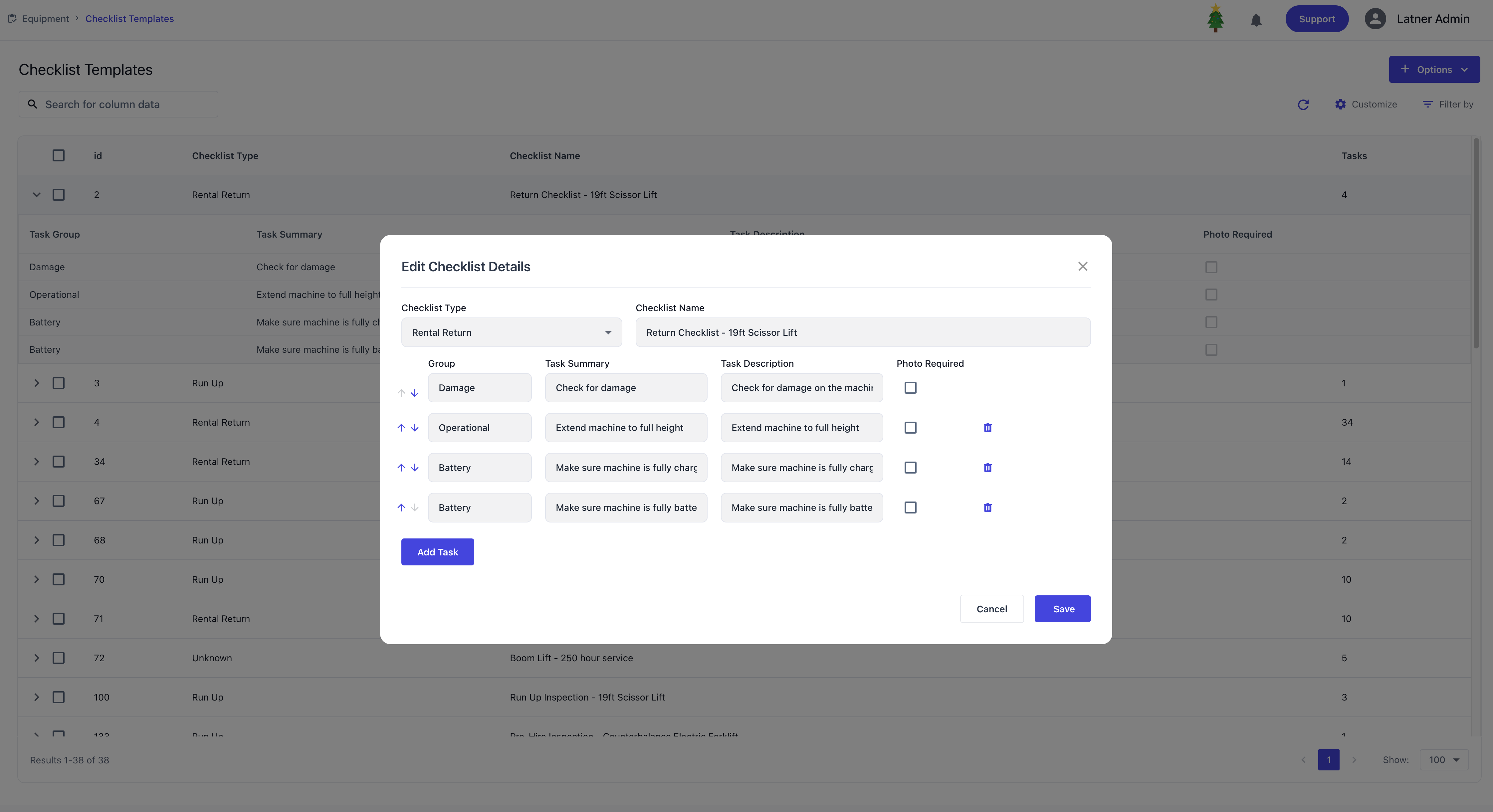
Checklist Templates are used to configure standardised checklists that can be imported, exported, or created directly within the system. These templates ensure consistency across inspections, service schedules, and operational processes.
When adding a checklist details, you define:
Type: the category of checklist. Available types include:
Service: used for scheduled service tasks
Run‑up inspections: performed before equipment is put on hire
Return inspections: completed when equipment is returned
Equipment transfer inspections: applied when equipment is moved between branches
Pre‑sale inspections: carried out before selling equipment
Pre‑start inspections: completed by operators before starting equipment
Name: the identifier for the checklist.
Task list: a structured list of tasks, including:
Group: tasks grouped together for PDF output.
Task summary: a short label for the task.
Task description: detailed instructions for completing the task.
Photo required: whether a photo must be attached to complete the task.
Telematics Integrations
Telematics Integrations are used to connect the system to third‑party tracker software, enabling automated equipment tracking and data syncs. These integrations ensure that fleet and asset information remains accurate and up to date.
When setting up a telematics integration, you define:
Company: the company that will use the tracker software.
Connection credentials: the ID and password required to connect, which vary depending on the tracker software configuration.
Once configured, clicking the Connect button will prompt you to enter the required credentials. The connection process differs by provider, with specific steps available for supported trackers such as Teletrack, Trackunit, and Perspio.